Knowledge base
Perform
Two songs on two decks, kept in time with each other, a crossfader between them, six pads to throw the mix around, a master section, and eight snapshot pads that hold loops you have lifted from the channels. This is the booth. The knobs, channels and pads work without an account; the second deck, Mix and snapshots need one.
Two decks
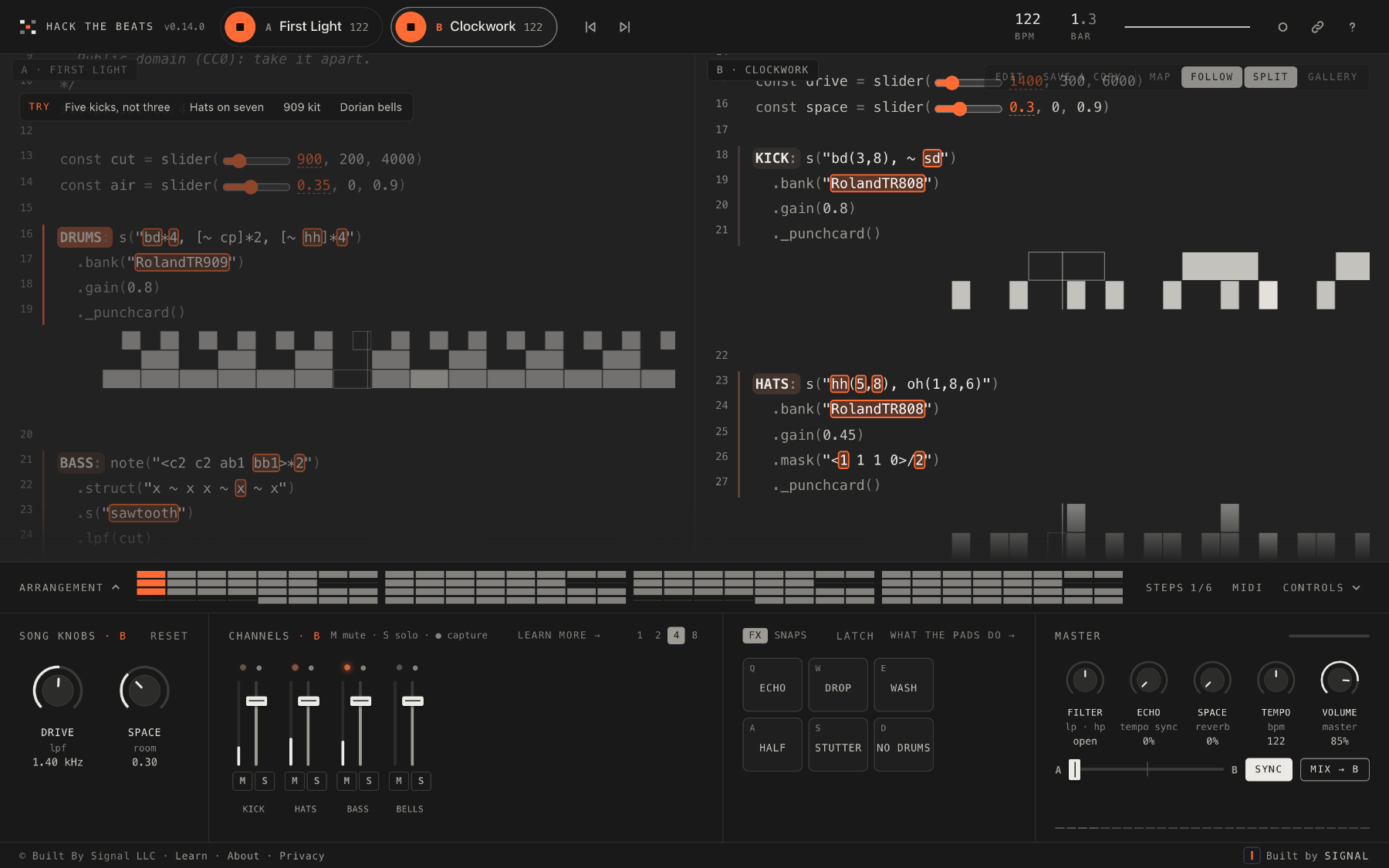
The site has two decks, A and B, and each holds one song with its own code, knobs and channels. The two chips in the top bar are the decks: each shows its play button, its letter, the title of the song on it and its tempo. The deck in focus is the one the stage, the knobs, the channels and the keys act on. Click the other chip, or press X, to switch focus. Click the chip that is already in focus and the song list opens for that deck.

Deck B starts empty, and there are four ways to fill it:
- Click the B chip, and the song list opens for deck B.
- Press Choose a beat on the empty deck B pane.
- In the song list, every row ends in small A and B buttons: press B on the one you want.
- Press X to focus deck B, then B for the list, or ← and → to step through the songs.
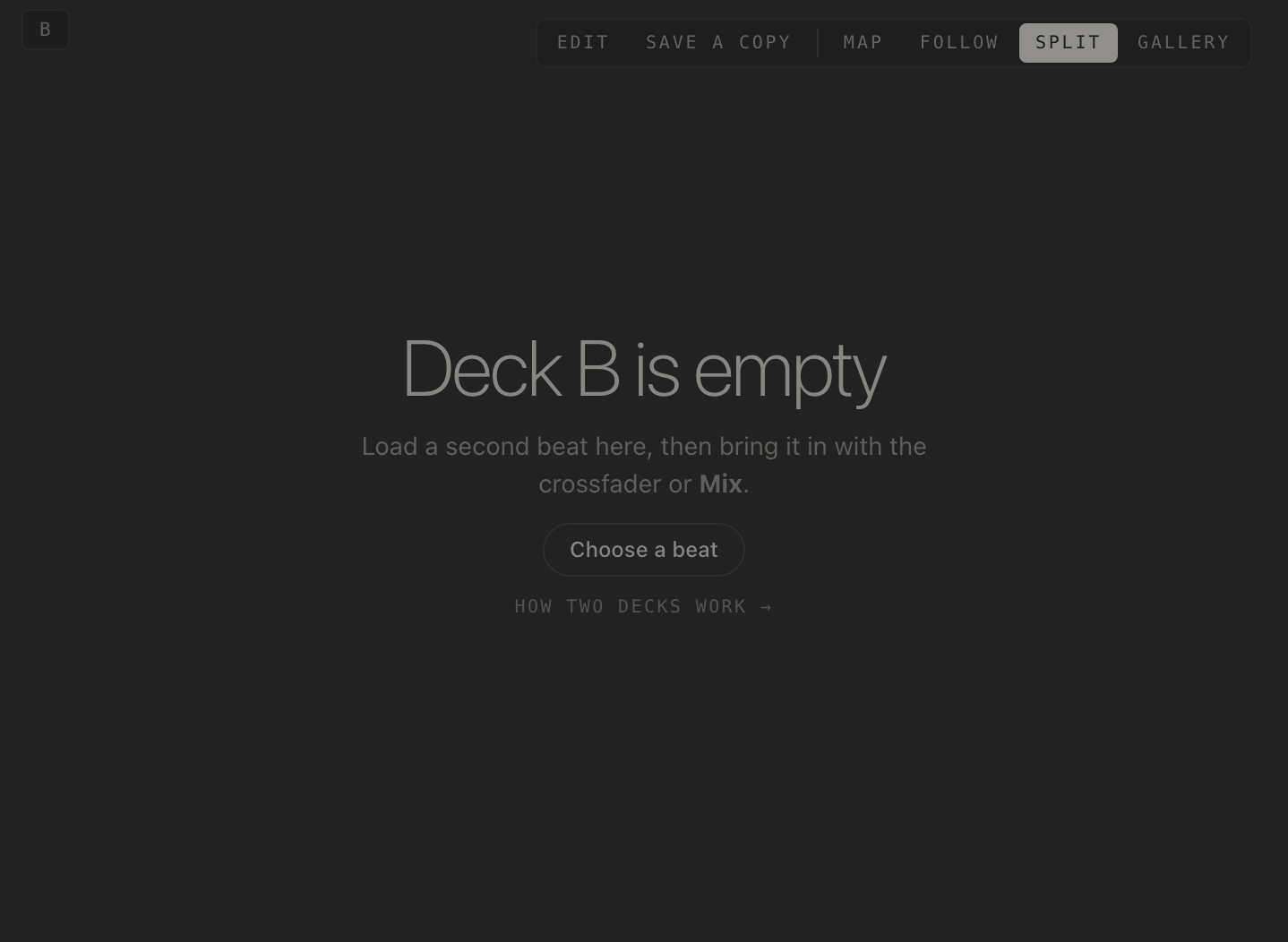
Deck B, Mix and the crossfader row need an account, because they are where the site stops being a player and becomes an instrument. Signed out, deck A is the whole player, and everything on it still works.
Each chip shows its song's tempo, and while the deck plays it is the live tempo, so you can see at a glance that deck A is at 124 and deck B at 118 before you bring the second in. The code on the stage is always the focused deck's; the other deck keeps playing out of sight, and Split shows both.
Sync and Mix
Two songs at different tempos do not belong in the same room, so the site keeps them in time for you. Sync is on by default, and it is the chip beside the crossfader in the Master panel. With Sync on, a deck you start while the other is playing waits for the next bar line and comes in exactly there, at the other deck's tempo. Switch Sync off and a deck starts the moment you press play, at its own tempo, as two records would without a pitch fader.

Mix
Mix is a whole transition in one press. The button names the deck it will go to, Mix → B, and M does the same. Press it and:
- The other deck starts on the next bar line, in time.
- The crossfader travels across over eight bars while the button reads Mixing….
- The first deck stops, and the focus moves to the deck that is now playing.
Press the button again during the fade and the fade stops where it is, with both decks still playing and the crossfader wherever it got to; finish by hand. On a window wide enough, the stage switches to Split view while the mix runs, so you can watch the song that is leaving and the song that is arriving side by side.
The crossfader
The crossfader runs from A on the left to B on the right with an equal-power curve, so the middle is not a dip: both decks sit at a level that adds up to one song. Its readout says Deck A or Deck B at the ends and the split between them in the middle, 60% A, 40% B. Double-click it to centre it. It is the hand-driven version of Mix: start the second deck with Sync on, then ride the fader across on your own count.
Tempo
The Tempo knob in the Master panel speeds a song up or slows it down around its own tempo, from three quarters to one and a quarter times, and its readout is the result in bpm. With one deck playing it acts on the deck in focus. When both decks play with Sync on, they share one tempo, led by the deck that was playing first; the knob shows and moves that shared tempo, whichever deck is in focus. When one deck stops, the other keeps the tempo they were sharing rather than snapping back to its own, so a mix does not lurch at the end. Reset on the knobs panel puts the tempo back along with everything else.
Pads
The six pads are the effects a DJ reaches for with one hand while the other is on the fader. Each one works for as long as you hold it, on the pad itself or on its key, and lets go when you do. They need no account.
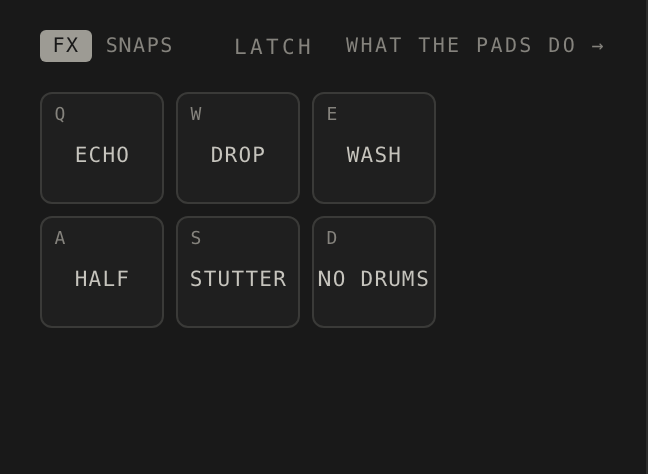
| Pad | Key | What it does to the music | When a DJ reaches for it |
|---|---|---|---|
| Echo | Q | Throws the whole mix into a tempo-locked echo that feeds back on itself, so what you hear repeats and trails away. | The last beat of a phrase, a vocal word to smear into the next section, the moment before a drop. |
| Drop | W | Closes a resonant low-pass filter down to 140 Hz over about half a beat, so the mix falls away to a rumble; let go and everything slams back. | A breakdown, a tease before the beat returns, the bar that ends a transition. |
| Wash | E | Drowns the mix in reverb, with most of the dry sound pulled back, so it goes distant and wide. | A phrase ending, an outro, or under a vocal moment to make it float. |
| Half | A | Half-time from the moment you press it: the pattern runs at half speed, so every hit lands at half the rate and the beat feels twice as heavy. The sounds themselves are not slowed. | A trap-style switch-up, a breakdown that needs to feel heavy, the slow-motion bar before a build. |
| Stutter | S | Repeats the eighth of a bar you pressed it in, over and over, until you let go. | A fill at the end of a phrase, a glitch on the four, building tension before a change. |
| No drums | D | Pulls the percussion out and leaves everything else playing. | Letting the bass and the chords breathe, a vocal moment, the bars before the drums return. |
Hold a pad for a moment; Shift-click it, or hold Shift with its key, and it stays on until you press it again. Latch, at the top of the panel, makes every tap work that way: tap on, tap off. On a touch screen the keys are not shown, and a finger on the pad does the holding.
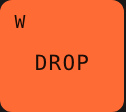
Three of the pads act on the whole mix and three on the songs. Echo, Drop and Wash sit on the master, after both decks, so they treat whatever is coming out of the fader as one sound. Half, Stutter and No drums act on both decks at once, inside the songs themselves, and the first two only do something while a deck is playing.
No drums has to know which parts are drums. It looks at each channel's name first (anything like KICK, HATS, CLAP, SNARE, PERC or DRUMS counts) and then at what the part actually plays, so a track that mostly triggers drum sounds is treated as drums whatever it is called. A song whose percussion is on plainly named channels gets the cleanest result, and a song written as a single unlabelled pattern gives the pad nothing to pull out.
/*
  @title Four Floors
  Every part on its own floor: kick, hats, clap and bass each have a channel, so any one can step out.
  Two more wait with the lights off. Unmute ACID and STAB when the room is ready for them.
*/
setcps(124/60/4)

const drive = slider(700, 150, 3000)

KICK: s("bd*4")
  .bank("RolandTR909")
  .gain(0.9)
  ._punchcard()

HATS: s("[~ hh]*4, ~ ~ ~ oh")
  .bank("RolandTR909")
  .gain(0.4)

CLAP: s("~ cp ~ cp")
  .bank("RolandTR909")
  .gain(0.55)

BASS: note("<g1 g1 bb1 f1>*4")
  .struct("x ~ x ~ x ~ x x")
  .s("sawtooth")
  .lpf(drive)
  .gain(0.5)
  ._scope()

_ACID: note("g2 [~ g2] bb2 g2 ~ g3 f2 g2")
  .s("sawtooth")
  .lpf(sine.range(400, 2400).slow(4)).lpq(12)
  .decay(0.15).sustain(0)
  .gain(0.3)

_STAB: note("<[g3,bb3,d4] [f3,a3,c4]>")
  .struct("~ x ~ ~ x ~ ~ ~")
  .s("gm_epiano1")
  .delay(0.3)
  .gain(0.4)
This one is laid out for a performer. The kick, hats, clap and bass each have a channel, so No
drums finds the three percussion parts by name and leaves the bass standing. Two more parts,
_ACID and _STAB, wait muted: bring them in from the mixer when the room is ready, and
try Drop on the bar before you do.
Pads and the crossfader are made to be used together. Hold Drop as you ride the fader from A to B and let go on the bar the new song lands on; latch No drums on the outgoing song before a mix so the two kick drums never fight; throw Echo on the last word of a phrase and cut the old deck under the tail. None of it is saved anywhere, which is the point: it is yours, tonight.
Master
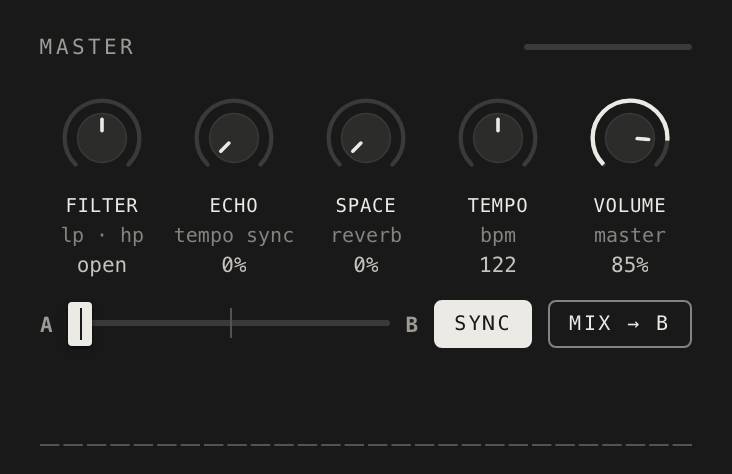
The master section sits after both decks and before your speakers. It has five knobs, the crossfader row, a level meter beside the title and a spectrum under it all.
| Knob | What it does | Readout |
|---|---|---|
| Filter | One knob for both filters. Turned left of centre it closes a low-pass down to 90 Hz, so the top goes first; turned right it opens a high-pass up to 7 kHz, so the bottom goes. Centre is untouched. | open at the centre, then lp or hp with how far it has gone. |
| Echo | A dotted-eighth echo locked to the tempo, on the whole mix. The pad of the same name throws it all the way in; this knob sets how much is there all the time. | Per cent. |
| Space | Reverb on the whole mix, from dry to a hall. | Per cent. |
| Tempo | Speeds the song up or down around its own tempo, by up to a quarter either way. See Tempo above for which deck it moves. | The resulting bpm. |
| Volume | The master level, set to 85 per cent to begin with. A recording is taken after this knob; a video clip's sound before it. | Per cent. |
Behind the Volume knob is a limiter you cannot adjust. It keeps the output under full scale however hard the decks push, and the meter beside the Master title turns orange while it is holding the level back. Orange now and then is a sign of a loud mix; orange all the time is a sign to bring the faders or the Volume down.
All of this is why a producer does not need to write every filter sweep and echo throw into the code. The song can be the song, and the person performing it has the sweep on the Filter knob and the throw on the Echo pad. The Filter, Echo, Space and Volume positions are remembered in this browser between visits; the tempo always starts at the song's own.
Snapshots
A snapshot is one channel, lifted out of the song as it sounds right now and kept as a loop you can bring back whenever you like, in time, on either deck. It is the site's answer to the sampler on a DJ's controller, and it records the real sound: the fader, the effects and the knobs as they are at that moment.
Capturing one
- Choose the length beside the Channels title: 1, 2, 4 or 8 bars. Four is the default.
- With the deck playing and the channel audible, press ● on its strip. The strip arms.
- The recording starts at the next bar line, takes that channel alone for the chosen number of bars, and lands on the first empty snapshot pad.
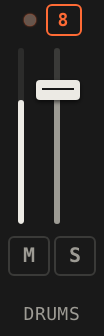
Nothing you hear changes while it records. The same ●, or Esc, lets a capture go before it starts. A capture is abandoned if the deck stops or the tempo changes before it is done, and the site says so. If the channel is muted, the strip asks you to unmute it first: a silent snapshot is no use to anyone.
Playing one
The snapshot pads are the second bank in the Pads panel, under Snaps on a mid-sized window and beside the effects pads on a wide one. Their keys are T Y U I on the top row and H J K L underneath, eight slots in all.
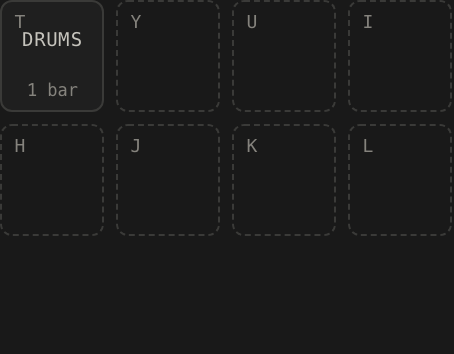
- Tap a pad and the snapshot comes in on the next bar line, looping.
- Tap it again and it stops at the next bar line.
- Shift-tap, or Shift with its key, plays it once through.
While it plays, a snapshot is a channel of its own on that deck, with a strip in the mixer: a fader, a meter, mute and solo, and × where ● would be, to stop it. It follows the deck's tempo like a record, pitch and all, so a loop lifted at 124 bpm and played under a 118 bpm song drops with it, which is exactly what makes two of them sit together.
Right-click a pad, or press and hold it on a touch screen, and its sheet opens, titled Snapshot 3 and so on, with what it is: the bars, the channel, the song it came from and the tempo it was captured at.
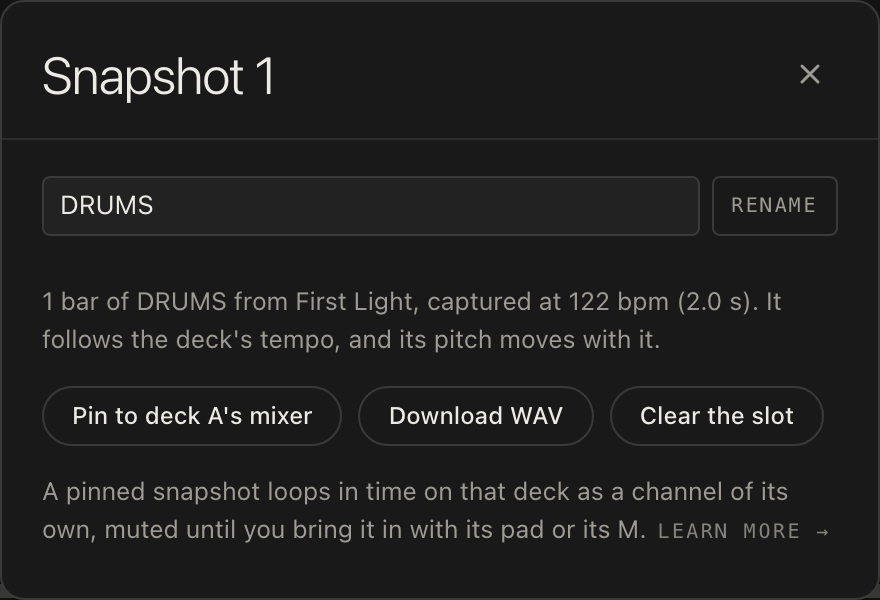
- Rename
- Give it a name that means something at a glance: HOOK, not Snapshot 3.
- Pin to deck A's mixer
- Keeps it on that deck as a channel that loops in time but starts muted. Bring it in with its M, or its pad, when the moment comes. Unpin takes it off again.
- Download WAV
- Saves the loop as a 16-bit stereo WAV file, to use anywhere.
- Clear the slot
- Empties the pad.
What to know
- A snapshot can be up to 30 seconds long. At a slow tempo, eight bars may not fit; the site captures as many bars as will, and says so.
- There are eight slots. When all eight are full, the next capture asks you to tap the pad it should take, or Esc to let it go.
- Snapshots are kept in this browser and, signed in, in your account, so they are on the pads next time.
- Capturing needs an account, and a browser that can record audio inside the page; every current desktop browser can.
/*
  @title Loose Riff
  One riff that stands on its own. Solo HOOK and it still works; the beat underneath is as plain as it gets.
  "shine" sets how much of the riff comes back as an echo.
*/
setcps(120/60/4)

const shine = slider(0.3, 0, 0.7)

HOOK: n("<[0 ~ 3 ~ 5 ~ 3 7] [0 ~ 3 ~ 5 ~ 10 7]>")
  .scale("G3:minor")
  .s("gm_lead_2_sawtooth")
  .lpf(2200)
  .delay(shine)
  .gain(0.35)
  ._pianoroll()

KICK: s("bd*4")
  .bank("RolandTR909")
  .gain(0.85)
  ._punchcard()

HATS: s("[~ hh]*4")
  .bank("RolandTR909")
  .gain(0.4)
A song with a part that stands on its own is a song made for snapshots. Capture HOOK here for two bars, load another beat on the same deck, and tap the pad: the riff comes back over the new song, at its tempo, as if you had planned it.
Ideas
- DJs: lift the hook of the song that is leaving and bring it back over the song that has arrived; pin a vocal line to deck B so it is there, muted, for the moment you want it.
- Producers: write one channel as a riff that works alone, so performers have something worth capturing; see Build.
- Remixers: capture a part as it is, then change its code and play the old one against the new; or download the WAV and take it into another program.
A MIDI controller
Everything on the deck that you can turn, slide, hold or press can be put on hardware. Plug a controller in, then find the MIDI button at the right-hand end of the arrangement strip, or the MIDI controller section of the help sheet behind ?, which has Connect, Learn and Forget bindings.

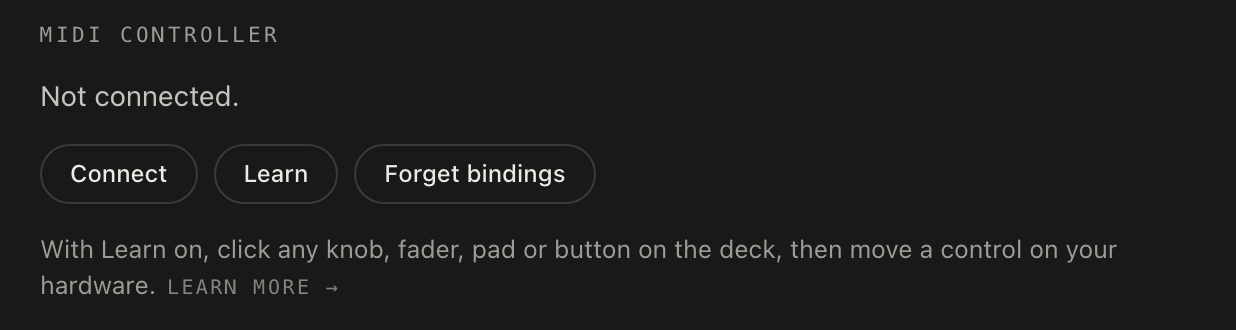
- Connect asks the browser for your MIDI devices; the status line then names what it found.
- Press MIDI (or Learn) to start learning, then click a control on the deck.
- Move a knob or press a pad on your hardware. The site says Bound and waits for the next pair.
- Press MIDI again, or Esc, when you are done. Binding a control that is already bound replaces the old binding.
You can bind the song's knobs and switches, each channel's M, S and fader (snapshot channels too), the six effects pads, the eight snapshot pads, the master knobs, the crossfader, Mix, and both decks' play buttons. A knob on the hardware moves a knob on the deck; a pad or a button holds a pad while it is down and lets go when it is up. What you cannot bind: Sync, Latch, Reset, the capture dots and the length chips, Record and Update.
Bindings are positional: the third knob is the third knob, whatever song is on the deck, so one layout serves every beat. They are remembered in this browser; Forget bindings clears them. MIDI works in Chrome, Edge and Firefox (Safari has no Web MIDI), input only, and Learn needs an account.