Getting started
Start here
Strudel is the engine: a language for writing music as code. Hack The Beats is the stage, the instrument and the DJ booth built around it, where that code becomes something you can play, perform, remix, record and share.
What is this?
Every song on the site is a short program. When you press play, your browser runs it and makes the sound as it goes: nothing is a recording. The code stays on screen the whole time, and the words that make a sound light up at the moment they sound. Change a word and the music changes with it.
The language is Strudel, made at strudel.cc: a way of writing
music in JavaScript where a pattern is a sentence about time. s("bd*4") is four kicks
in a bar; s("[~ cp]*2") is "rest, clap, twice". Strudel is what lets you write music with
code, and anything that plays on strudel.cc plays here.
Hack The Beats is what stands around that engine. The site reads the code the way you would read a score, and turns what it
finds into controls: each named part becomes a channel in a mixer, each slider()
becomes a knob, and a song can offer one-tap changes to try. Around that sit
the things a DJ expects: two decks kept in time, a crossfader,
performance pads, snapshots and a master
section. Then there is a remix room, where you edit the code while it plays and keep your own version, and a way out: a
recording, a video clip or a link that anyone can open. So Strudel writes the music, and Hack The Beats makes it something
people can play, manipulate, perform, remix, visualise, record and share.
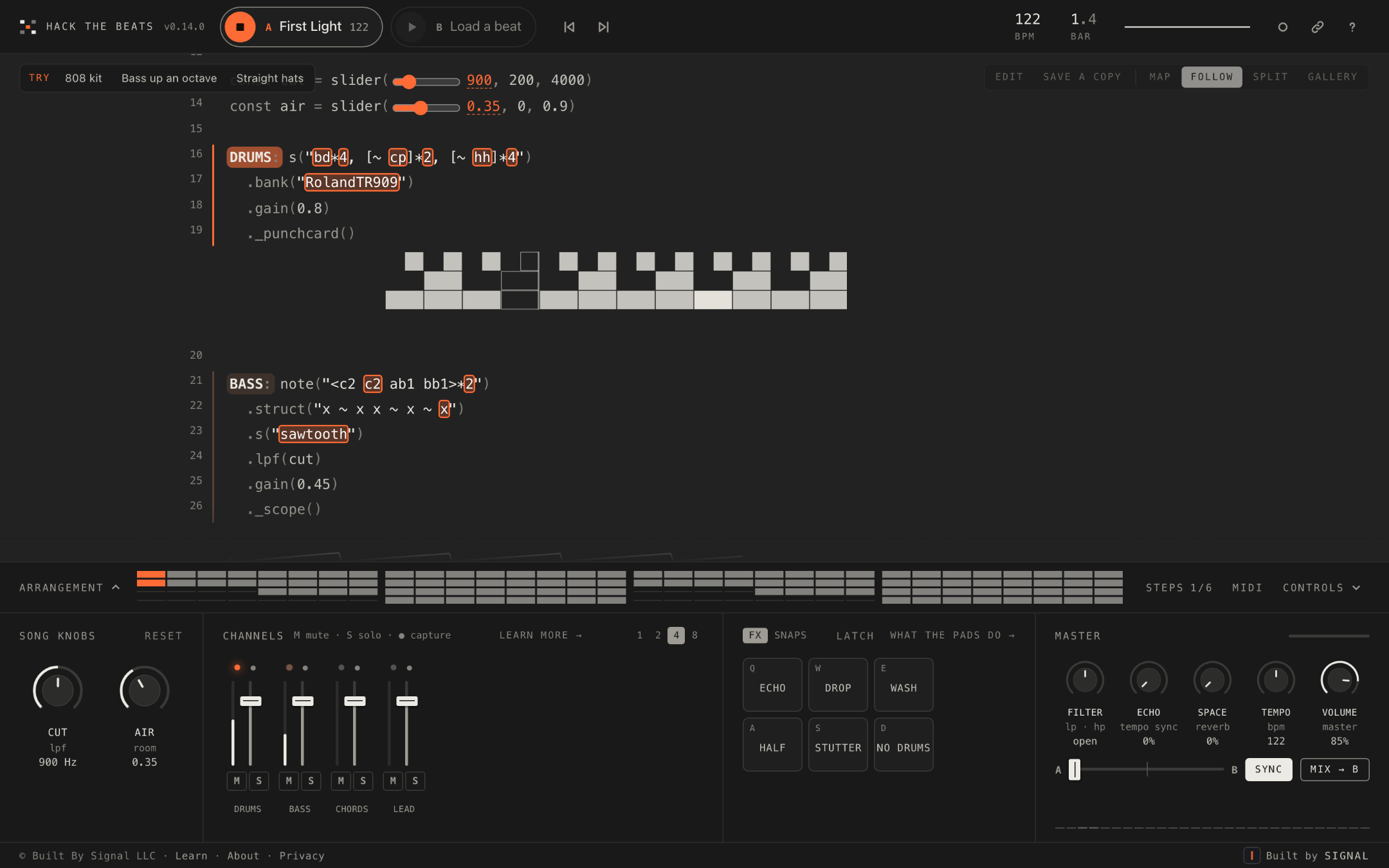
Here is a whole song, the way the site sees it.
/*
  @title Night Ferry
  A slow crossing after dark: a plain beat, a bass that opens as "pressure" turns, and a pad waiting below deck.
  Mute DRUMS and the bass carries it alone; unmute PAD when the lights come up.
  @try Rounder bass: `s("sawtooth")` -> `s("triangle")` in BASS
*/
setcps(118/60/4)

const pressure = slider(1200, 300, 4000)

DRUMS: s("bd*4, [~ cp]*2, hh*8")
  .bank("RolandTR909")
  .gain(0.8)
  ._punchcard()

BASS: note("<d2 d2 f2 a1>*2")
  .struct("x ~ x x ~ x ~ x")
  .s("sawtooth")
  .lpf(pressure)
  .gain(0.45)
  ._scope()

_PAD: note("<[d3,f3,a3] [d3,f3,a3] [f3,a3,c4] [a2,c3,e3]>")
  .s("gm_pad_halo")
  .attack(0.3).release(1)
  .room(0.5)
  .gain(0.3)
The comment at the top is the header: its @title names the song on the deck and its
plain lines become the notes you read in the help sheet, while the @try line becomes a chip over the code that
swaps the bass sound with one tap. setcps(118/60/4) sets the tempo, 118 BPM. The
slider line becomes a knob called pressure that runs from 300 to 4000 and reads in hertz, because it feeds a
filter. DRUMS: and BASS: become two channels with faders and meters, _PAD: a third
that starts muted, waiting to be brought in, and the ._punchcard() and
._scope() calls draw a live picture under the line that makes the sound.
Play first
Press play. Turn a knob. Mute a channel. Tap a suggestion. That is the first five minutes, and no code is involved. You do not need an account for any of it.
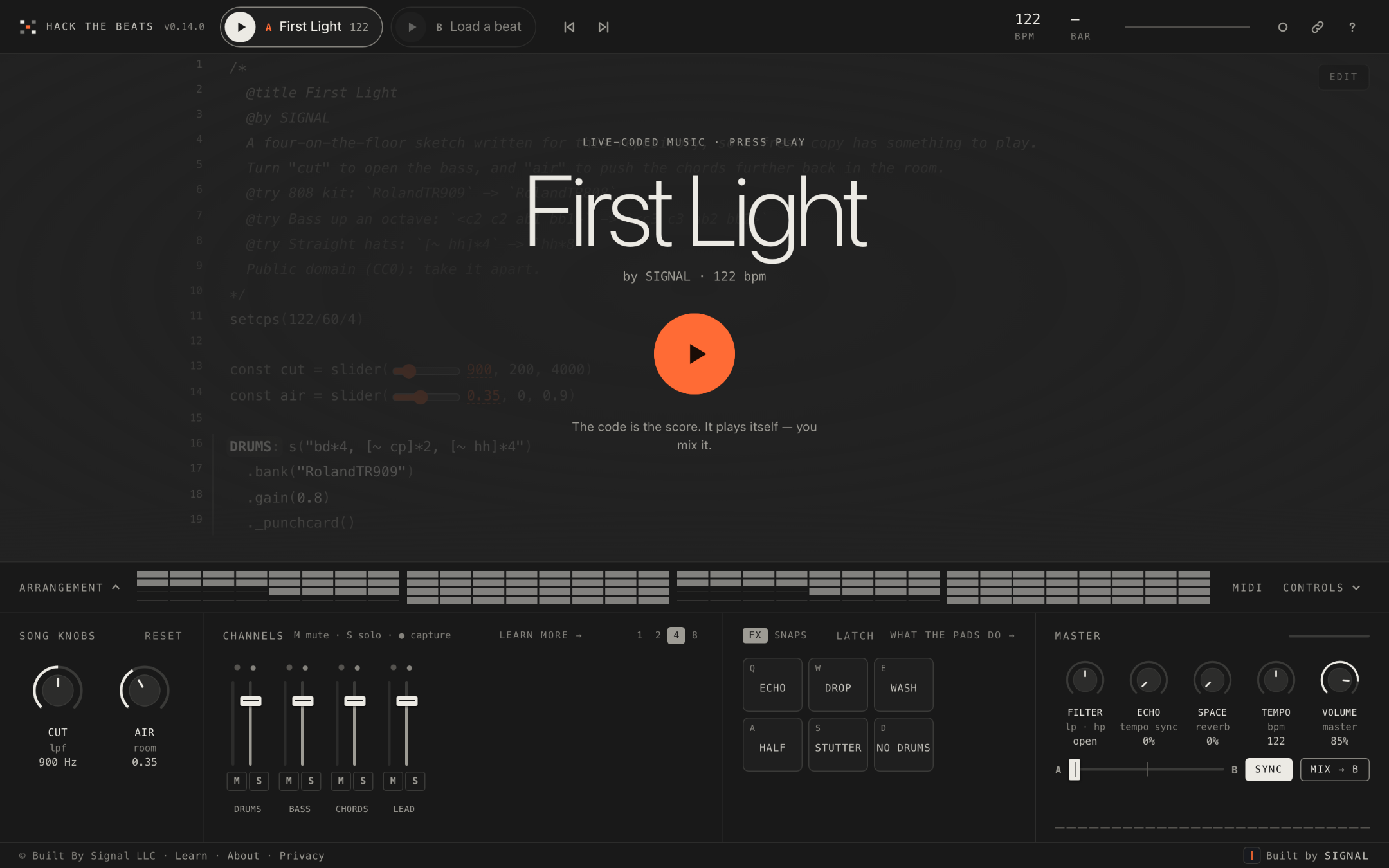
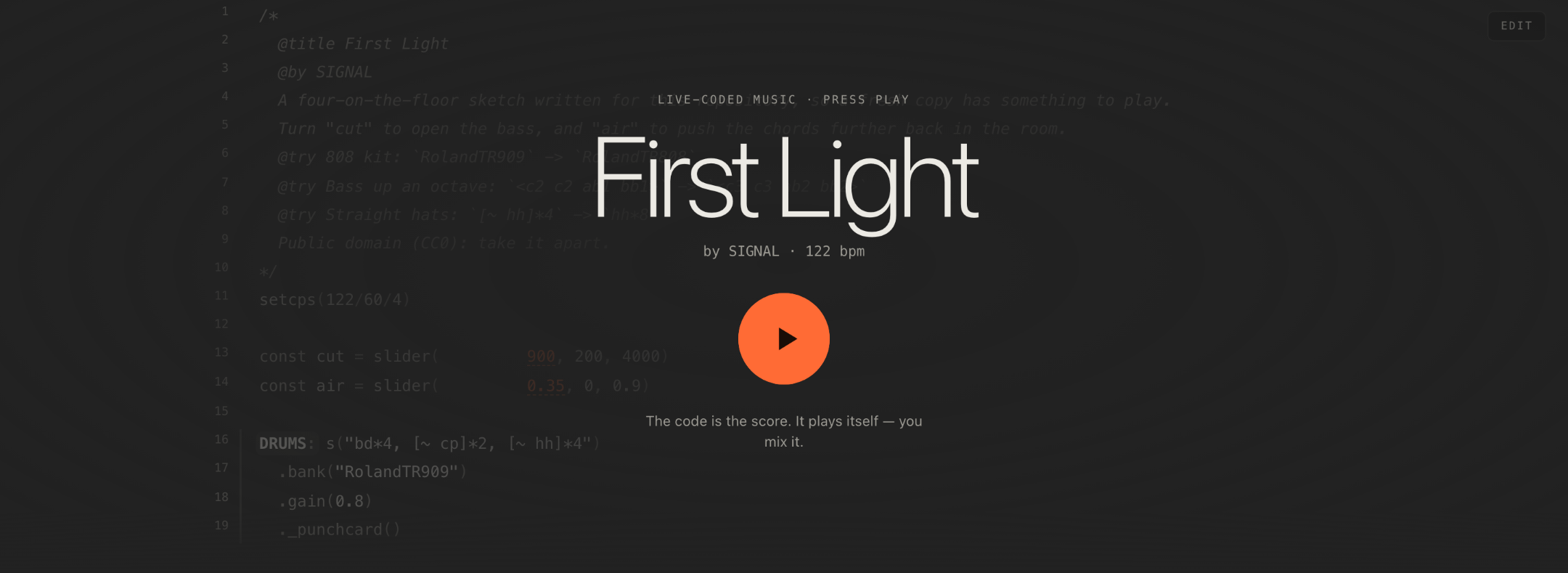
- Press play on the curtain, or press Space. The code lights up as it sounds, and a scope at the top of the stage moves with the music.
- Turn a knob on the deck. Each one is a number in the code; watch the number change as you turn it, without the music stopping. Double-click a knob (or press Enter on it) to put it back.
-
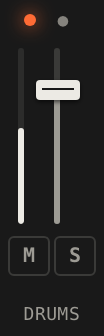
Mute a channel. Press M on a strip in the mixer, or click the track's label in the code
(
DRUMS:, say): the tooltip reads Click to mute, then Click to bring in. The keys 1 to 9, 0, - and = mute channels 1 to 12. - Hold a pad. Q throws an echo, W drops the music into a filter, E washes it in reverb, A halves the time, S stutters, D takes the drums away. Let go and it stops.
- Tap a Try chip, top left over the code, once something has played. The line changes, and so does the music; tap it again to put it back.

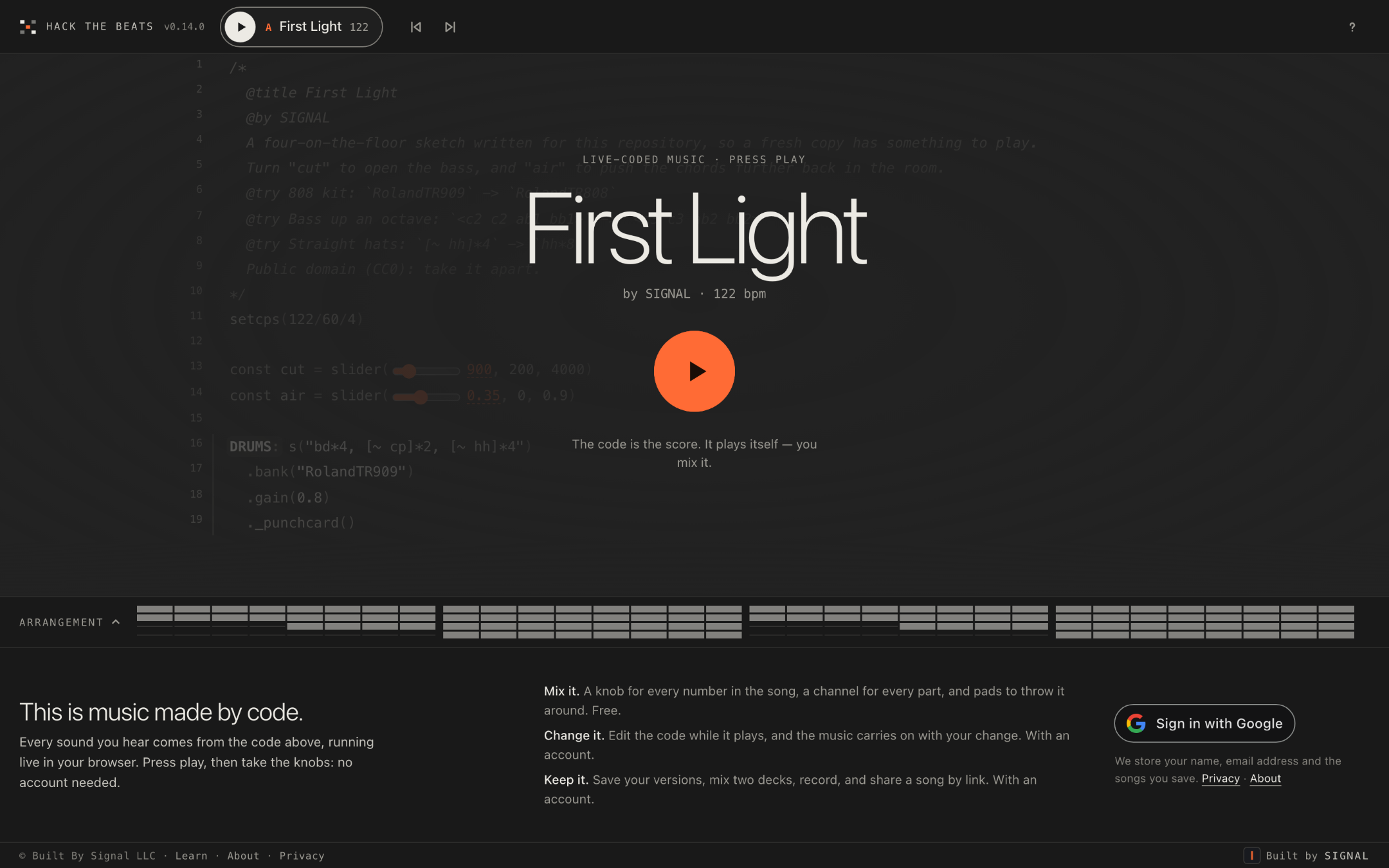
A visitor who is not signed in sees the live site in its free form: the featured beat on deck A with a short pitch beneath it, every knob, switch, channel and pad working, and a sign-in button for the rest. The first time you click into the code without an account, a line explains that signing in is what unlocks editing, and that in the meantime a track name mutes and a lit number finds its knob.

Four ways in
The guide is written for four people. Pick the one you are today; the other paths will still be here.
I just want to play with a beat
You want to hear something good and lean on it: turn the knobs, drop the drums out and back in, hold a pad through a section, see what the suggestions do. None of this needs code, and none of it needs an account.
- The stage: what the code is doing while it plays, and how to read the lights.
- Knobs, channels and switches: the three kinds of control on the deck.
- Pads: the six held effects.
- Try and the song map: a song's own suggestions, and a guide to its parts.
- Follow, Split and Gallery: the three ways to look at the code.
I mix and perform
You want two songs at once, in time, with a crossfader between them, pads to throw at the room and loops you can bring in on the bar. You probably own a controller. The second deck and the capture button need the free account; the pads and the master knobs do not.
- Two decks and Sync and Mix: how a second song comes in on the bar line and how the fade works.
- Pads and the master section: Filter, Echo, Space, Tempo and Volume.
- Snapshots: capture one channel for a few bars and play it back like a record.
- MIDI: bind any knob, fader, pad or button to your hardware.
- Record the mix when it is good.
I want to change a song
You hear a beat and want it slower, darker, with a different bass, or with bars 9 to 16 gone. You are happy to touch code if the site tells you what each line does, and you want to keep your version without breaking the original. This needs the free account.
- Edit while it plays: Edit, Update, and what happens when a change does not run.
- Change the sounds: swap a sample, a note, a number.
- The arrangement strip: cut, keep, move and silence bars without typing.
- Capture loops and save your versions.
- Someone else's song: what a shared link lets you do, and how a copy credits its source.
I write Strudel
You already write patterns and want to know how this site reads them: what makes a channel, a knob, a switch, a suggestion, a note on the map, and what makes a song that performs well under someone else's hands. The Strudel rules are here, with the things that trip people up.
- Strudel basics: the rules the site relies on, and the mistakes that cost an evening.
- How code becomes controls: the table of what the site reads.
- The header, labels, macros, switches and @try lines.
- Form in 32 bars and writing for a DJ.
- The checklist before you share.
What is free, and what needs an account
The live site has two levels. Signed out, you get an instrument; signed in, you get a studio. The account is free and is a Google sign-in, nothing more to fill in.

| Free, signed out | With the free account |
|---|---|
| The featured beats on deck A, and up to six of them as chips beside the deck | Every beat, and the song list for both decks |
| Knobs, switches, channels, pads and the master knobs, with Reset | The crossfader, deck B and Mix |
| Try, the song map, Follow and Gallery | Editing the code, Save, Save as new, Save as my song and Save a copy |
| Jumping about the arrangement strip: click a bar, or [ and ] | Trimming the arrangement: Cut, Keep only, Silence and the rest |
| The keys that go with all of the above, and ? | Sharing by link, recording, video clips, snapshots and MIDI Learn |
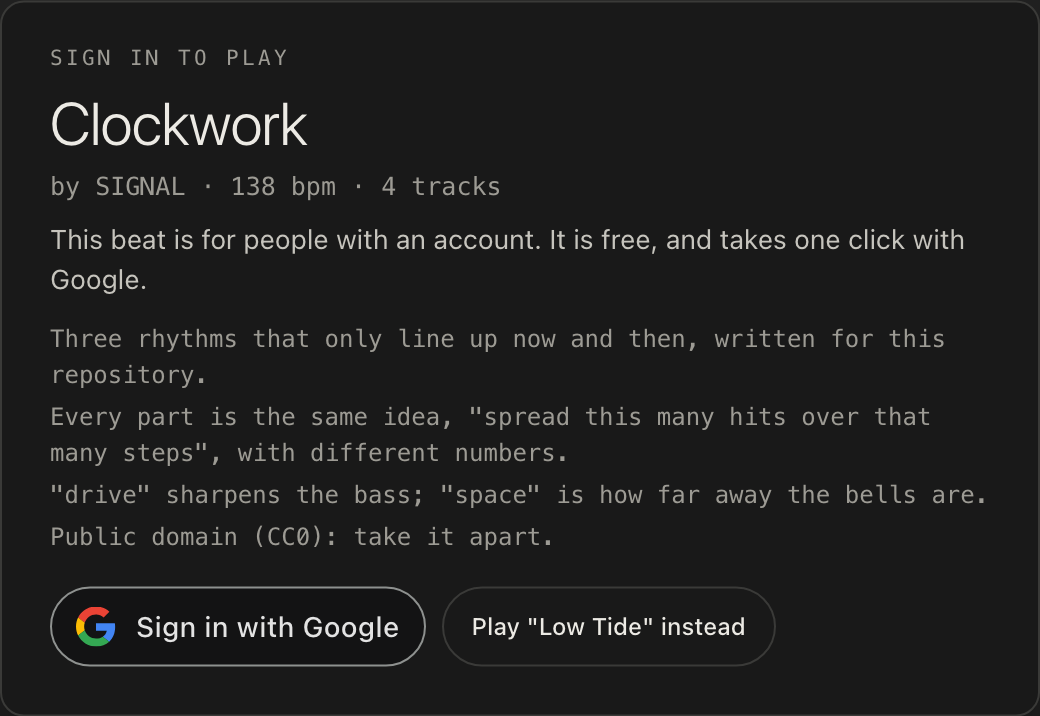
So a signed-out visitor can play a featured beat, bend every control on it, read its map and try its suggestions. A Try chip still works, but the message beside it says Sign in to keep your own version, because nothing you change is kept until you can save. Beats that are not featured show sign in to play in the list, and opening one by its address shows a curtain that says so, with a button to play a featured beat instead.
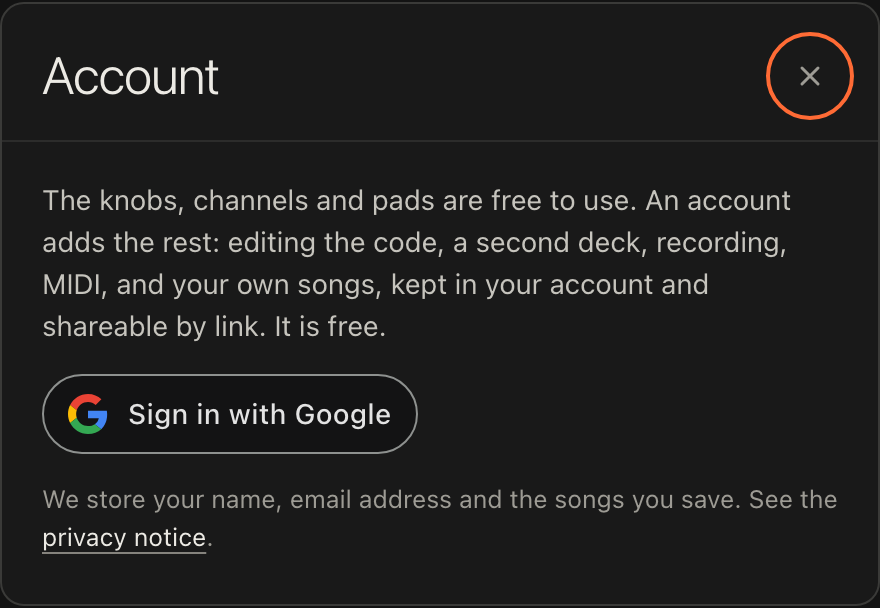
Signing in opens the rest: editing and saving, Save a copy, sharing a song by link, recording the mix, video clips, the second deck with Mix and the crossfader, snapshots, trims on the arrangement strip, and MIDI Learn. A new account also gets a first song of its own, called User demo: a copy of the featured beat, in My songs, there to be changed. The featured beat itself is never touched.
A local copy of the site, run from the source with no accounts set up, has everything open: the editor, both decks, recording, video clips, snapshots, all of it, with your songs kept in the browser; only sharing by link needs a hosted copy with accounts. That is the version this guide's demo beats live in.
First steps
The first time a song plays, a small card called First steps opens in the corner of the stage. It is a short list, and it is the loop the whole site is built on: play it, bend it, change it, keep it, pass it on.
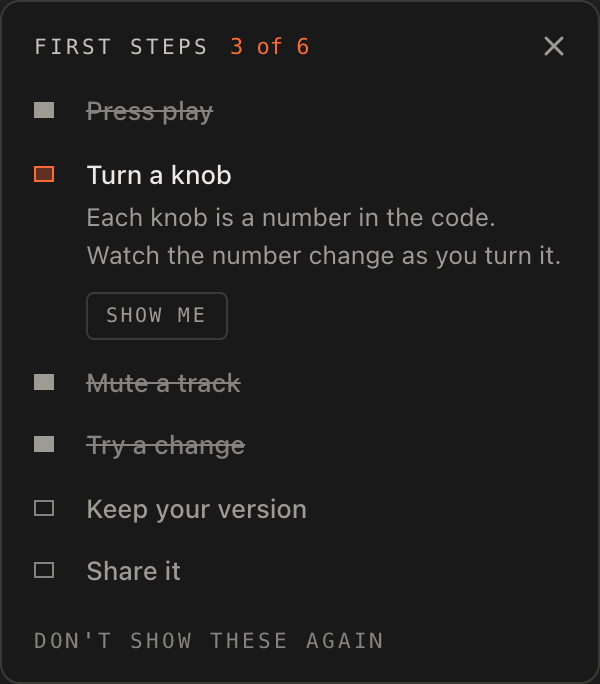
Signed out, the steps are these; each one ticks itself off the moment you do it, wherever you did it.
- Press play. The code lights up as it plays: every sound comes from it.
- Turn a knob. Each knob is a number in the code. Watch the number change as you turn it.
- Mute a track. Click a track name in the code, like
DRUMS:, or press M on its channel. - Try a change. Tap a suggestion over the code. This step only appears when the song has suggestions.
- Sign in to keep going. Free, with Google. Then change the code, keep your version and share it.
With an account the list ends differently: Try a change becomes Change the code when the song has no suggestions (press Edit, change a number or a word, press Update), then Keep your version with Save as my song or Save, and Share it, so that anyone with the link can play your song and keep a copy of their own.
Each step has a Show me chip that points at the control it means, and the card's count reads how many are done. When the last one ticks, the card says so and a Done button closes it.
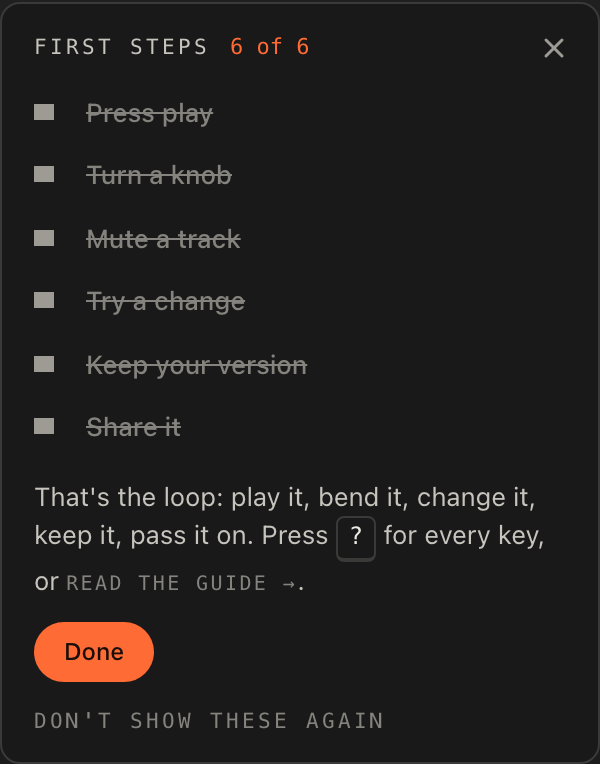
You can close the card at any time with its ×. It comes back from the Steps button on the ribbon above the deck, which shows how far you got, as in Steps 2/5. Don't show these again, at the foot of the card, puts it away for good in this browser; if you change your mind, the help sheet has Show the first steps again.

Help inside the player
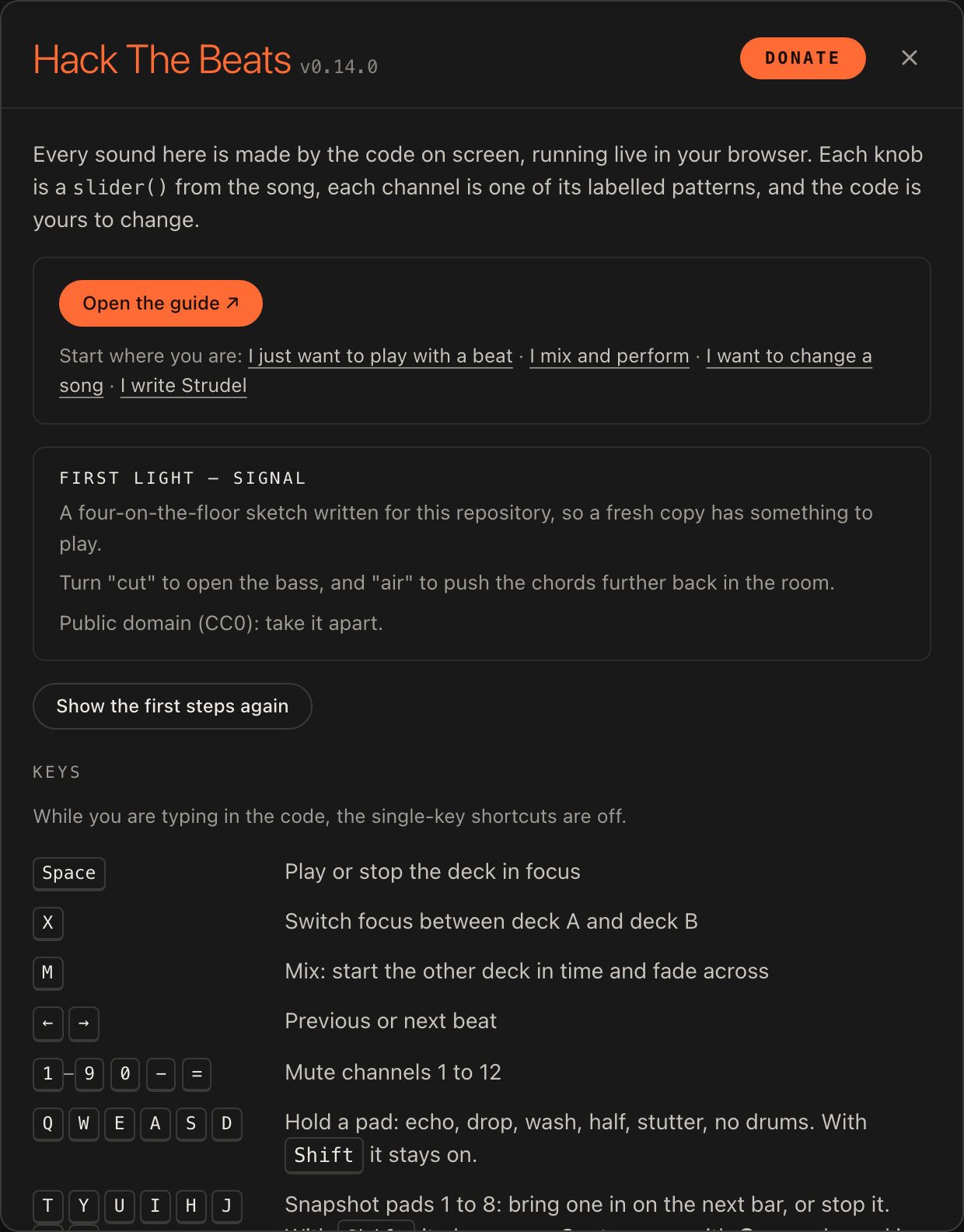
You do not have to leave the player to find out what something does. The ? button at the right of the top bar (or the ? key) opens the help sheet, which is quick help for whatever is loaded.

From the top, the help sheet holds:
- Open the guide ↗, which opens this guide in a new tab, with the four paths from above as links beneath it.
- The song's own notes: whatever its author wrote in the header, and the legend of any switch it has.
- Show the first steps again.
- Keys: every shortcut, written for your machine (a Mac sees ⌘ where Windows sees Ctrl).
- On screen: one line each on editing, the code, Try, the song map, the views, knobs, channels, pads, snapshots, two decks, the arrangement, your songs and sharing, each with a Learn more link into this guide.
- MIDI controller: Connect, Learn and Forget bindings, with the connection's status.
- Support the site, and the credits, the licence and the source.
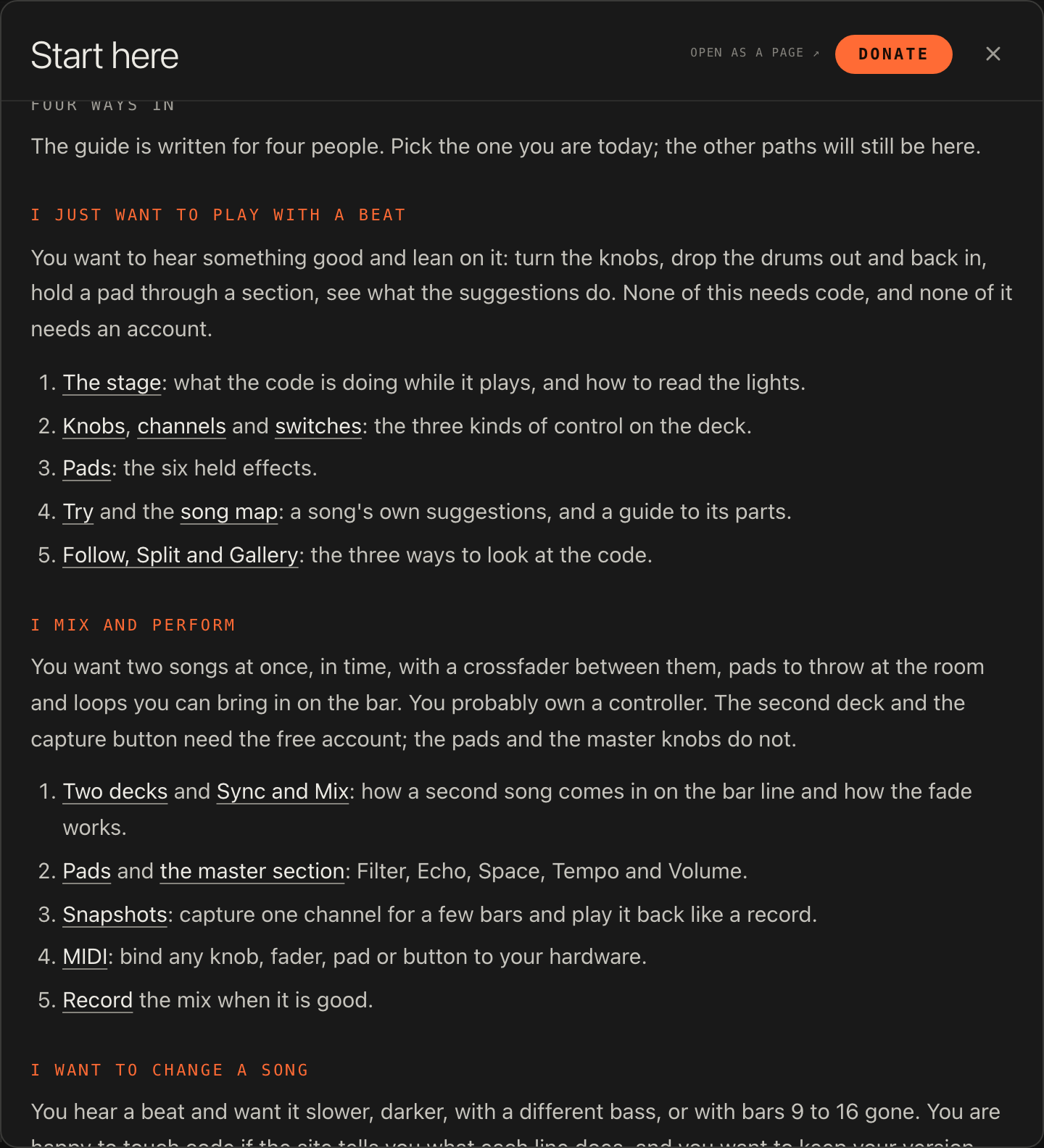
A Learn more link does not take you away. It opens the article over the player, where you can read it and close it with the music still going; Open as a page ↗ at the top of that reader opens the same article here, in a new tab, when you want the whole guide and its contents list.
Smaller help is everywhere else. Rest the pointer on anything in the top bar and a tooltip names it with its key: Record the mix to a file (R), Help and shortcuts (?). The buttons on the deck and the stage bar do the same, so Update reads Run the edited code with its shortcut, and each knob's tooltip says what it shapes. When something cannot be done, the player says why in a sentence at the foot of the screen rather than doing nothing.