Reference
Reference
Every control on the player, region by region, with what it does, the key that does the same, and whether it needs an account. The sections after that list the keys in one place, what a MIDI controller can drive, the addresses the site answers to, and the limits of what it does.
The screen
From the top: the top bar holds the two decks, the transport and the actions. Below it the stage shows the song's code, lit as it plays, with the stage bar of editing and view buttons along its foot. Under the stage runs the arrangement strip, 32 bars wide. Under that is the deck, in four panels: Song knobs, Channels, Pads and Master. The footer carries the links to this guide, the About page and the privacy notice.
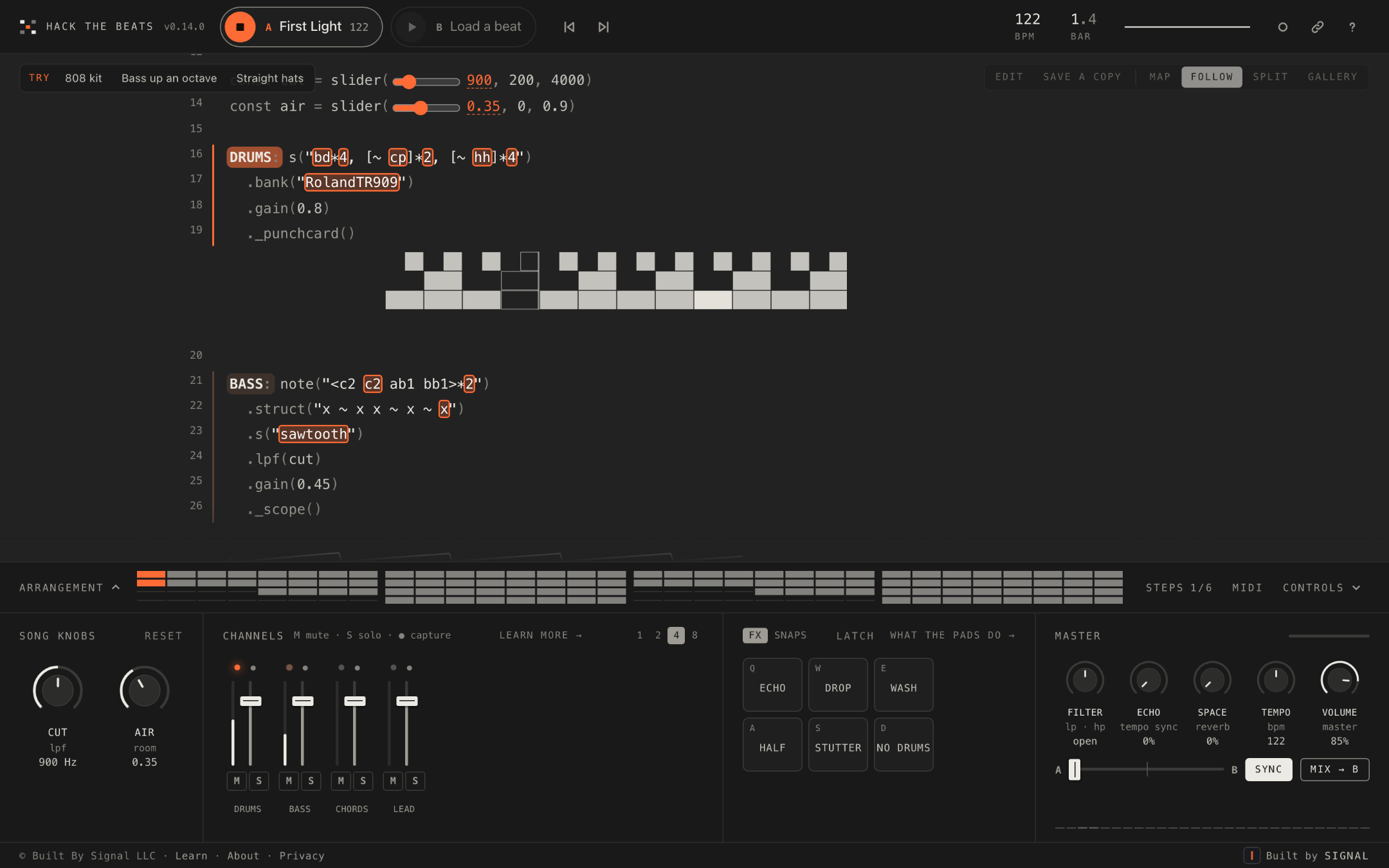
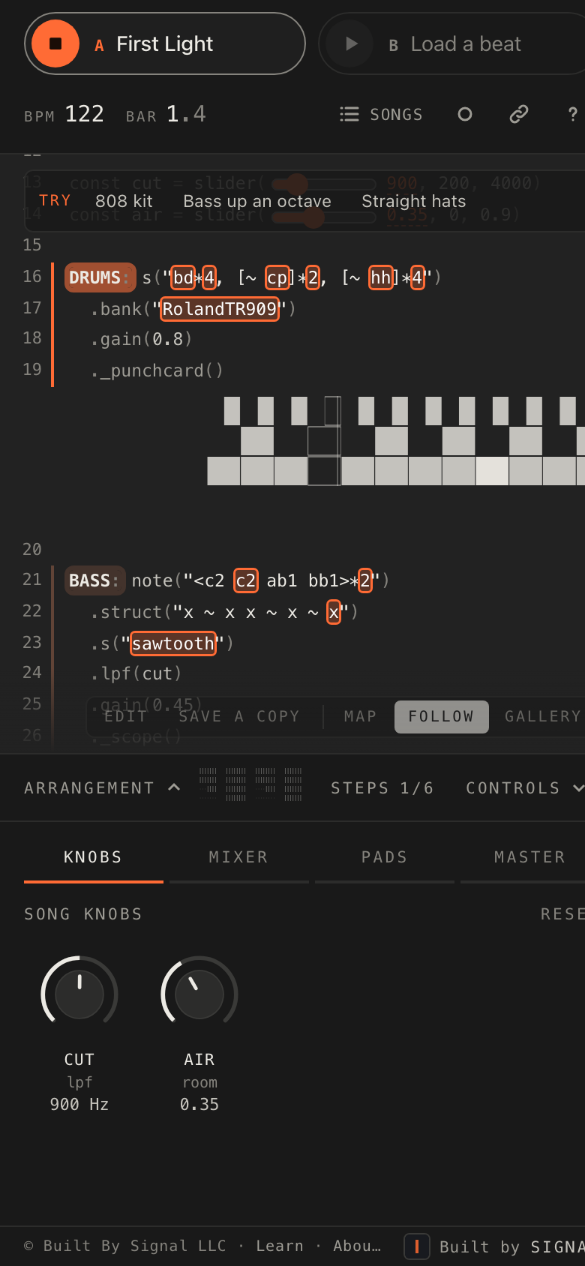
On a phone the same regions stack. The deck shows one panel at a time behind four tabs, Knobs, Mixer, Pads and Master, a Songs button joins the top bar, and the song map sits behind Map in the stage bar. Windows narrower than 860 pixels, or shorter than 540, behave the same way.
In every table, Account? says whether the control needs you to be signed in. The featured beats, the knobs, switches, channels, pads and master knobs are free for anyone; editing, saving, sharing, recording, the second deck, snapshots and MIDI need a free account. See What is free, and what needs an account.
Top bar

| Control | What it does | Key | Account? |
|---|---|---|---|
| Hack the Beats (the brand) | Opens the list of beats and songs for the deck in focus. The version number sits beside the name. | B | No |
| Deck chip A / B | The deck's title and bpm. Click a chip to put that deck in focus: the stage, the panels and the keys act on it. Click the chip already in focus to open the list for that deck. Deck B reads Load a beat until it has one. | X switches focus | Deck B: Yes |
| Play / stop (on each chip) | Starts or stops that deck. With Sync on, a deck started while the other plays comes in on the next bar line at the other's tempo. | Space (deck in focus) | Deck B: Yes |
| Featured chips | Signed out, two to six chips beside deck A name the featured beats. Tap one to load it. | — | No |
| Previous beat / Next beat | Changes the beat on the deck in focus to the one before or after it in the list. | ← → | No |
| bpm readout | The tempo of the deck in focus, read from the code's setcps() or setcpm() and bent by the Tempo knob. | — | No |
| bar readout | The bar the deck in focus is playing, with the beat within it in smaller type. | — | No |
| The scope | A small trace of the sound leaving the master. Hidden on windows narrower than 1180 pixels. | — | No |
| Songs (phone) | Opens the list of beats and songs; on wider windows the brand does this. | B | No |
| Record the mix to a file (the dot) | Starts and stops a recording of the mix as a WAV file. The time runs beside it. | R | Yes |
| Share this song (the link icon) | Opens the share sheet for the song on the deck in focus. | — | Yes |
| Help and shortcuts | Opens the help sheet. | ? | No |
| Sign in / your initial | Opens the account dialog. Signed in, the button shows your initial. | — | No |
Stage bar
The row at the foot of the code. Which buttons show depends on whose song it is and whether you have changed it.

| Control | What it does | Key | Account? |
|---|---|---|---|
| Update | Runs the edited code. The music carries on with the change; a mistake is reported in plain words and the last good version keeps playing. | Ctrl+Enter | Yes |
| Edit / Done | Unlocks the code for editing, and locks it again. With a mouse, a click in the code does the same; on a touch screen a tap is for the music, so editing starts here. | Esc leaves the code | Yes |
| Save a copy | On an unedited song that is not yours: keeps it as one of your songs, credited to its author. | — | Yes |
| Unsaved changes | Not a button: it shows while the code on the deck differs from the saved song. The deck chip gets a dot too. | — | — |
| Save | Writes over your own song. On an unedited song it says "Nothing to save." | Ctrl+S | Yes |
| Save as new / Save as my song | Keeps this version as a new song of yours. It reads Save as new on your own song and Save as my song on anyone else's, where the copy is credited as a remix of theirs. | — | Yes |
| Update the beat | Replaces the public beat with this version, for everyone. | — | Admin |
| Revert | Throws the changes away and restarts the saved version. | — | Yes |
| Map | Opens the song map when it is not docked beside the code. | — | No |
| Follow | The code glides to whichever track comes in, and tours the tracks that are playing. Scrolling by hand pauses it for a few seconds. | F | No |
| Split | Shows both decks' code side by side. | — | Needs deck B, so Yes |
| Gallery | Full screen, code only, larger type. | G; Esc leaves | No |
Song map
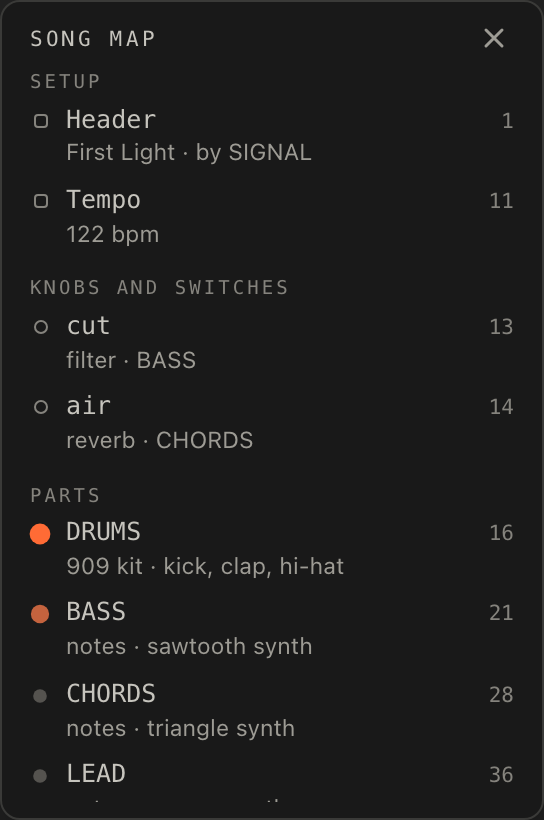
The sections of the code, read from the code itself, in four groups: Setup (the header, the tempo and the sample packs), Knobs and switches, Parts and Helpers. It is docked beside the code when the window is wider than 860 pixels and has room; otherwise it opens behind Map.
| Control | What it does | Key | Account? |
|---|---|---|---|
| An item | Click to glide the code there. A part's dot pulses with its track and dims when the track is muted. | ↑ ↓ Home End move; Esc closes | No |
| The card | Rest on an item, or tab to it, to read its details: its sounds and effects in plain words, the knobs it uses, a note its author left beside it, and one line of its code. | — | No |
| Edit this part | Opens the code with the caret at the start of that section. It reads Edit the header, Edit the tempo, Edit the sample packs, Edit this knob, Edit this switch or Edit this helper to match, and Sign in to edit when you are signed out. | — | Yes |
| Close the song map | When it is open behind Map. On a phone, choosing an item closes it too. | Esc | No |
Arrangement strip
Which tracks play in each of 32 bars, as a row of lit cells under the stage. The playing bar is highlighted, and after a trim a marker shows where the song now loops. The tools at the right end are Steps, MIDI and Controls.

| Control | What it does | Key | Account? |
|---|---|---|---|
| Arrangement (the toggle) | Opens the strip to show track names and bar numbers, one row per channel. "Show the arrangement with track names". | — | No |
| A bar | Click to jump there. When the deck is stopped it sets the bar play will start from. | [ ] jump four bars | No |
| Picking bars | Drag across bars, Shift-click a second bar, or type the first and last bar into the bars fields in the toolbar. Picking opens the trim toolbar. | Esc lets them go | No |
| ‹ › | Move the picked bars a bar earlier or later. | ← → | Yes |
| Cut | Takes the picked bars out. The song is the bars that remain, in order. | Delete or Backspace | Yes |
| Keep only | Keeps the picked bars and takes everything else out. | — | Yes |
| Copy | Remembers the picked bars. Paste and Paste over appear once something is copied from the same song. | Ctrl+C | Yes |
| Paste | Puts the copied bars in after the picked ones. The song cannot grow past 32 bars. | Ctrl+V | Yes |
| Paste over | Replaces the picked bars with the copied ones. | — | Yes |
| × | Closes the toolbar and lets the picked bars go. | Esc | No |
| Silence / Bring back | With the strip open, drag along one track's row to pick a stretch of it. Silence quietens that track there; on a stretch already silenced the button reads Bring back. | — | Yes |
| Undo | Offered for fifteen seconds after a trim, as long as the code has not been changed since. Every trim is written into the code and runs at once, so Save keeps it and Revert throws it away like any other edit. | — | Yes |
| Steps | Brings the first steps back after you close them. | — | No |
| MIDI | Switches MIDI Learn on: click a control, then move one on your hardware. Hidden on windows narrower than 860 pixels and when you are signed out. "Bind a MIDI controller to the deck". | Esc leaves Learn | Yes |
| Controls | Folds the deck away under the strip, and opens it again. | — | No |
Deck: Song knobs
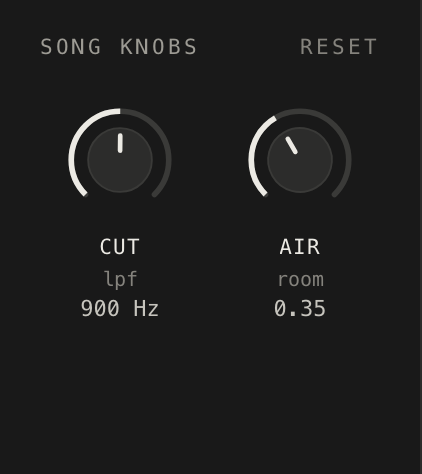
One knob for every slider() in the code, and one stepped knob for every
switch, in the order they appear. Each shows its name, a sub-label (the parameters it feeds, or
its range) and a readout; its tooltip says what it shapes, "Shapes BASS, LEAD".
| Control | What it does | Key | Account? |
|---|---|---|---|
| Reset | Puts every knob and switch back to what the code says, unmutes and levels the mixer, and returns the tempo to the song's own. | — | No |
| A knob | Drag, scroll, or use the keys. Turning it rewrites the number in the code as you go, without re-running the song. Positions are remembered in the browser for beats and saved with your own songs. | Arrows adjust, Shift fine, Home End the ends; Enter or a double-click resets. See Keys. | No |
| A switch | A stepped knob whose readout is the chosen option's label; its tooltip lists the options. Turning it changes the number in the code and re-runs the song a moment later. | The same keys as a knob | No |
| Inline sliders | The same knobs, drawn as sliders inside the code at the number they control. Drag one and the knob follows; click a highlighted number to find its knob. | — | No |
Deck: Channels
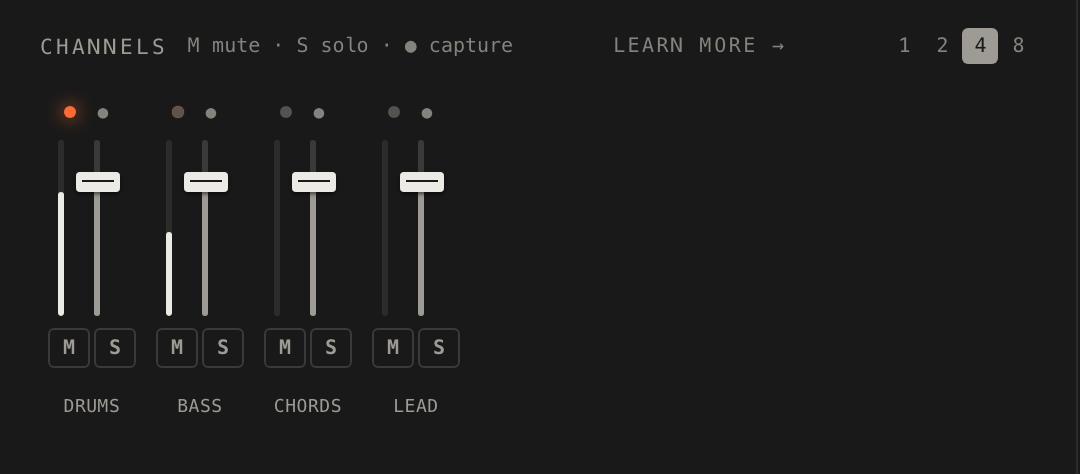
One strip for each labelled part of the code, named after its label: a channel. A song with no labels has no strips, since it is a single pattern.
| Control | What it does | Key | Account? |
|---|---|---|---|
| The name | Focuses on that track: its code and visual are isolated. Click again to release it. | Esc releases | No |
| The LED and the meter | The LED pulses as the track sounds; the meter shows its level. A strip whose sounds are not in the loaded packs is marked, with a tooltip naming them. | — | No |
| The fader | The channel's level, 0 to 125 percent, 100 by default. Levels, mutes and solos carry over an edit for labels that keep their names. | — | No |
| M | Mutes the channel. A label that starts or ends with an underscore comes up muted. Clicking the label in the code does the same. | 1–9 0 - = for channels 1 to 12 | No |
| S | Solos the channel. While any channel is soloed, only the soloed ones sound. | — | No |
| 1 2 4 8 | How many bars ● captures, from the next bar line. Four is the default. | — | Yes |
| ● | Captures that channel alone, as it sounds now, into the next free snapshot pad. The dot counts the bars down; press it again to let the capture go. The deck must be playing and the channel audible. | Esc lets a capture go | Yes |
| × | On a snapshot's own strip: stops it at the next bar, or unpins a pinned one. | — | Yes |
| Knobs Mixer Pads Master (phone) | On a phone or a short window the deck shows one panel at a time; these tabs choose which. | — | No |
Deck: Pads
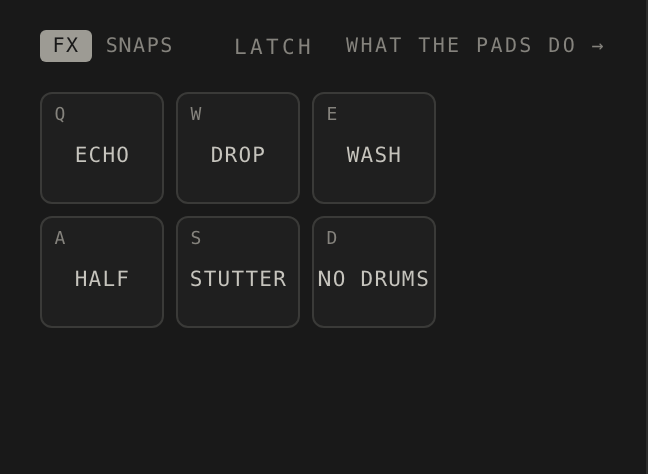
Six held effects, and eight snapshot pads. Hold a pad for as long as you want the effect; Shift-click it to keep it on. Key hints are hidden on touch screens. Between 861 and 1599 pixels wide the panel shows one bank at a time, behind FX and Snaps tabs.
| Control | What it does | Key | Account? |
|---|---|---|---|
| Echo | Throws the whole mix into a tempo-synced echo on the master. | Q | No |
| Drop | The master's low-pass filter closes to 140 Hz over about half a beat; let go and everything slams back. | W | No |
| Wash | Drowns the mix in the master's reverb. | E | No |
| Half | Half time from the moment you press, on both decks, while the deck plays. | A | No |
| Stutter | Repeats the eighth of a bar you pressed it in, on both decks, while the deck plays. | S | No |
| No drums | Mutes every channel the site takes for drums, by its name or by what it plays, on both decks. | D | No |
| Latch | Makes a tap switch a pad on, and another tap switch it off. | Shift+pad does it for one press | No |
| FX / Snaps | On mid-size windows: which bank the panel shows. | — | No |
| Snapshot pads 1 to 8 | Tap a filled pad to bring that snapshot in on the next bar, and again to stop it at the next bar. Shift-tap plays it once. When all eight are full, the next pad you tap takes the new capture. | T Y U I H J K L, with Shift once | Yes |
| A snapshot pad's menu | Right-click, or press and hold for half a second, to open the snapshot sheet. | — | Yes |
Deck: Master
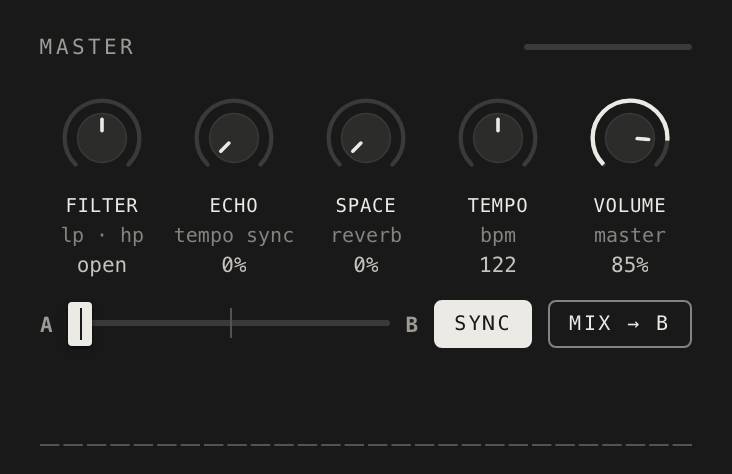
The master section acts on the sum of both decks. Its five knobs are remembered in the browser, apart from Tempo. A fixed limiter keeps the output under full scale.
| Control | What it does | Key | Account? |
|---|---|---|---|
| Filter | One knob: left closes a low-pass, down to 90 Hz; right opens a high-pass, up to 7 kHz; centre is open. The readout says open, lp or hp. | Knob keys | No |
| Echo | How much of the mix goes to a dotted-eighth echo locked to the tempo. | Knob keys | No |
| Space | Reverb on the whole mix. | Knob keys | No |
| Tempo | Speeds the song up or down around its own tempo, from three quarters to one and a quarter times. It acts on the deck in focus, or on the leading deck when two are synced; the readout is the resulting bpm. | Knob keys | No |
| Volume | Master volume, 85 percent by default. A recording is taken after this knob; a video clip's sound before it. | Knob keys | No |
| The meter and the spectrum | The meter in the panel header shows the output level and turns orange while the limiter is holding it down by more than 2 dB. The spectrum draws the output by frequency. | — | No |
| Sync | On by default: keeps both decks at one tempo and starts them on the bar. Off, a deck starts at once at its own tempo. | — | Yes |
| Mix | Starts the other deck in time and fades across over eight bars, then stops the deck you left and moves focus; press it again to stop the fade. On windows 1100 pixels and wider the stage switches to Split for the fade. | M | Yes |
| The crossfader | Blends deck A into deck B with equal power. The readout says Deck A, Deck B or the split, "40% A, 60% B". Double-click centres it. | — | Yes |
The songs list
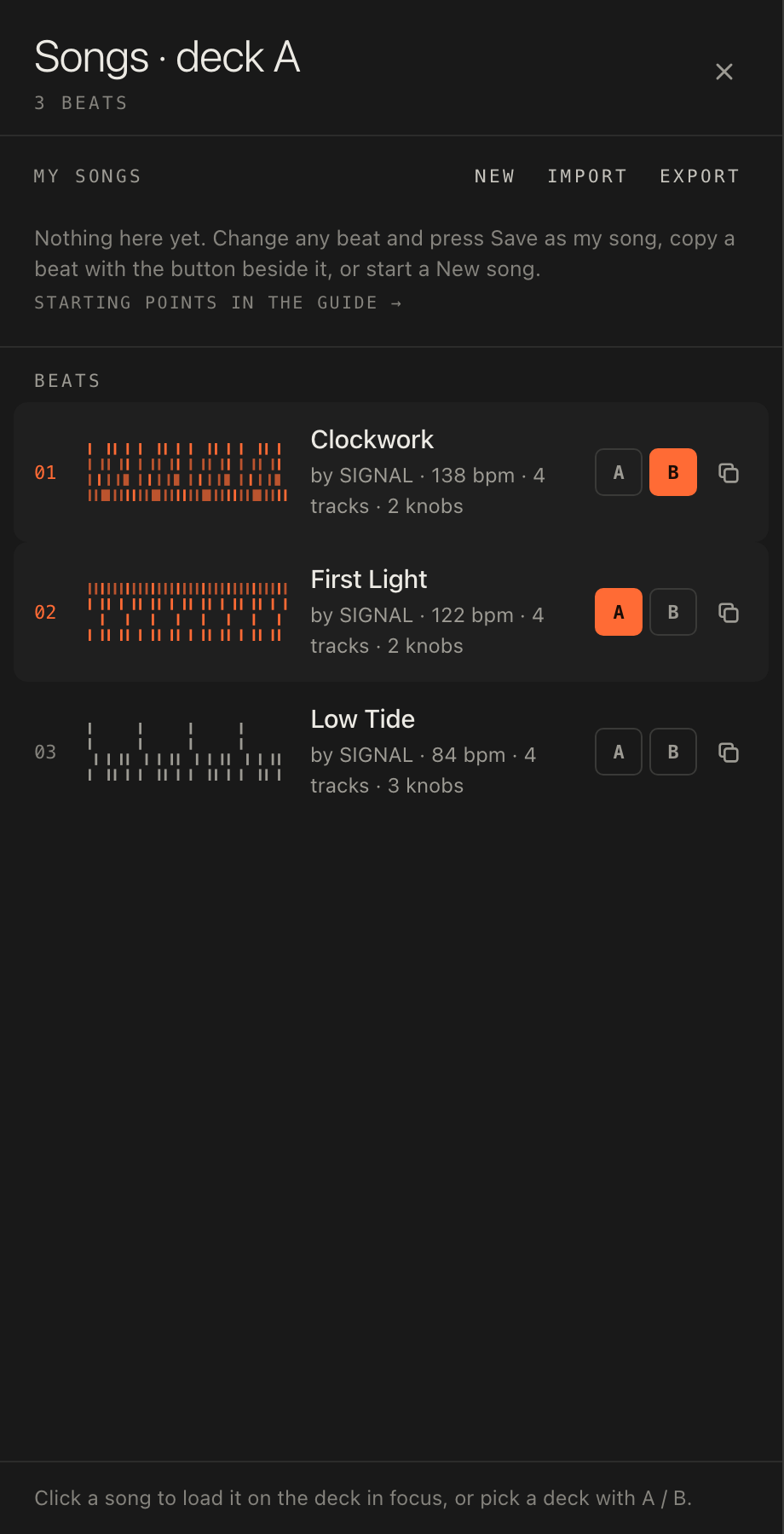
Opened by the brand, the Songs button, the chip of the deck in focus or B, and titled Beats or Songs · deck B. Up to three sections: My songs, From the community and Beats. Each row shows the title, the author, the bpm, the tracks and knobs, and for your own songs whether it is shared, what it is from and when it was saved. There is no search.
| Control | What it does | Key | Account? |
|---|---|---|---|
| A row | Loads that song on the deck the list was opened for. A beat you cannot play yet reads "sign in to play". | — | Featured beats: No |
| A / B | Loads that song on deck A or deck B instead. | — | B: Yes |
| New | Starts a song of your own from a starter: Drum loop or Full song. | — | Yes |
| Import | Brings in songs from files: .json, .js, .strudel, .str or .txt, several at once. | — | Yes |
| Export | Downloads all of your songs as one file. | — | Yes |
| ⋯ | On your own songs: Rename, Duplicate, Share… (or Shared · link once it is) and Delete, which asks "Really delete?" before it does. | — | Yes |
| Copy to my songs | On a beat or a community song: keeps a copy under My songs, credited to its author. | — | Yes |
| From the community | Up to 48 songs that people shared and offered, picked by the site's editors. Hidden while there are none. | — | Browsing: No. Playing: Yes |
Share sheet
Opened by the link icon in the top bar, or from a song's ⋯ menu. Your own song gets a link of its own; a beat is shared as its page with your settings in the link; someone else's song is shared as their link.
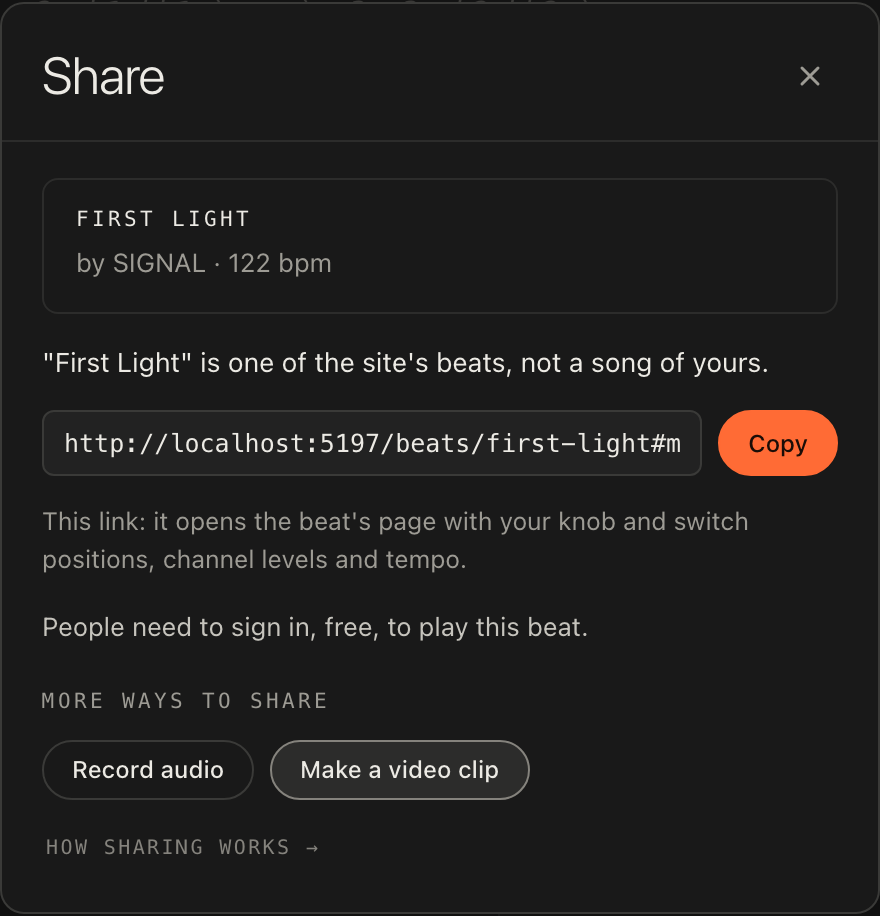
| Control | What it does | Key | Account? |
|---|---|---|---|
| Share by link: anyone with the link can listen | Switches a link on for your own song. The link always plays the latest saved version. Switching it off closes the link for good; switching it on again makes a new one. | — | Yes |
| Copy / Share… | Copies the link, or hands it to the device's own share panel where it has one. | — | Yes |
| Let the site feature this | Offers a shared song to the community shelf: if the site's editors pick it, its title, your name and its header notes appear under From the community. Untick to withdraw it. | — | Yes |
| Record audio | The same as the record dot in the top bar. | R | Yes |
| Make a video clip | Opens the clip sheet. There is no other button for it. | V | Yes |
| Save and share / Save as my song and share | Offered when you have unsaved changes, since a link plays the saved version. The other choice shares the saved version, or theirs, without your changes. | — | Yes |
Clip sheet
A video clip is recorded on your device as the music plays, from the next bar line; nothing is uploaded. The sheet is titled Video clip.
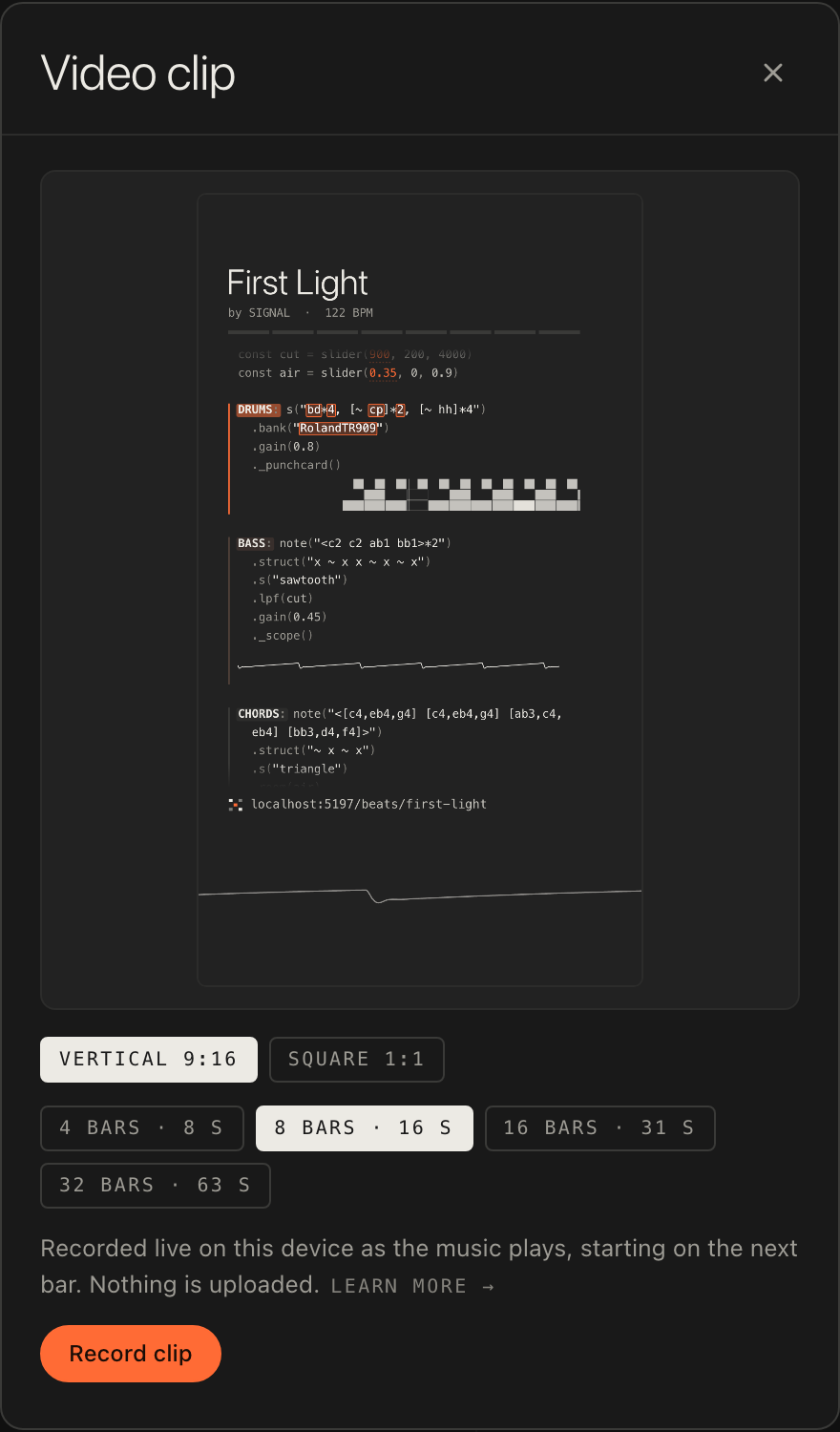
| Control | What it does | Key | Account? |
|---|---|---|---|
| Vertical 9:16 / Square 1:1 | The shape of the clip. Vertical keeps the code clear of the buttons and captions that short-video apps lay over it. | — | Yes |
| Length chips | 4, 8, 16 or 32 bars, written as "8 bars · 20 s", whichever last between 5 and 90 seconds at the song's tempo. The one nearest 20 seconds is chosen to begin with. | — | Yes |
| Record clip | Starts the music if it is stopped, counts in, and records from the next bar line. | — | Yes |
| The pill on the stage | Reads "Starting the music…", "Starting in 3", "Bar 5 of 8" and "Finishing…". Stop keeps what is recorded once a whole bar is in; Cancel throws it away. | Esc cancels | Yes |
| Share… / Download / Make another / Discard | After a clip: hand it to the device's share panel where it can share files; save it, MP4 at 1080p where the browser can write it and otherwise WebM at 720p; go back to the shape and length; or throw it away. | — | Yes |
Snapshot sheet
Opened by a right-click or a long press on a filled snapshot pad, or by the name on a snapshot's strip in the mixer. It says what the snapshot is: its bars, the channel and the song it came from.
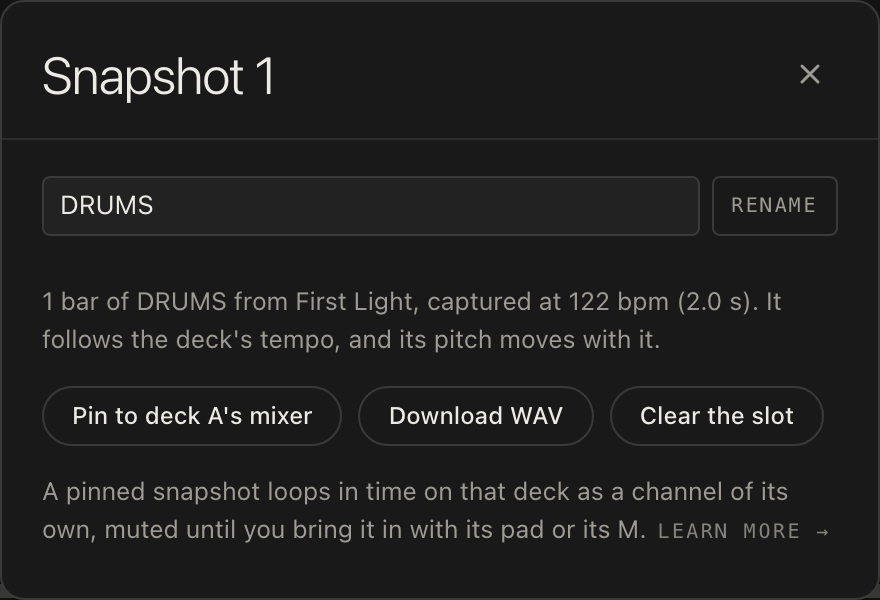
| Control | What it does | Key | Account? |
|---|---|---|---|
| Rename | Gives the snapshot a name of up to 60 characters. It shows on the pad and on its strip. | Enter in the field | Yes |
| Pin to deck A's mixer / Unpin | Pins the snapshot to the deck as a channel of its own, looping in time and starting muted, so it is there to bring in from the mixer. It names whichever deck is in focus. | — | Yes |
| Download WAV | Saves the snapshot as a 16-bit stereo WAV file. | — | Yes |
| Clear the slot | Empties the pad. | — | Yes |
Help sheet
The ? button opens it. From the top: the site's name and version with Donate; Open the guide and the four ways into it; a card for the song on the deck in focus, with its header notes; Show the first steps again; Keys, the list repeated below; Where things are, a line on each part of the player with a link into this guide; MIDI controller, with Connect, Learn and Forget bindings; Support the site; and Credits and source, with the link to download this version's source.
Account and Admin
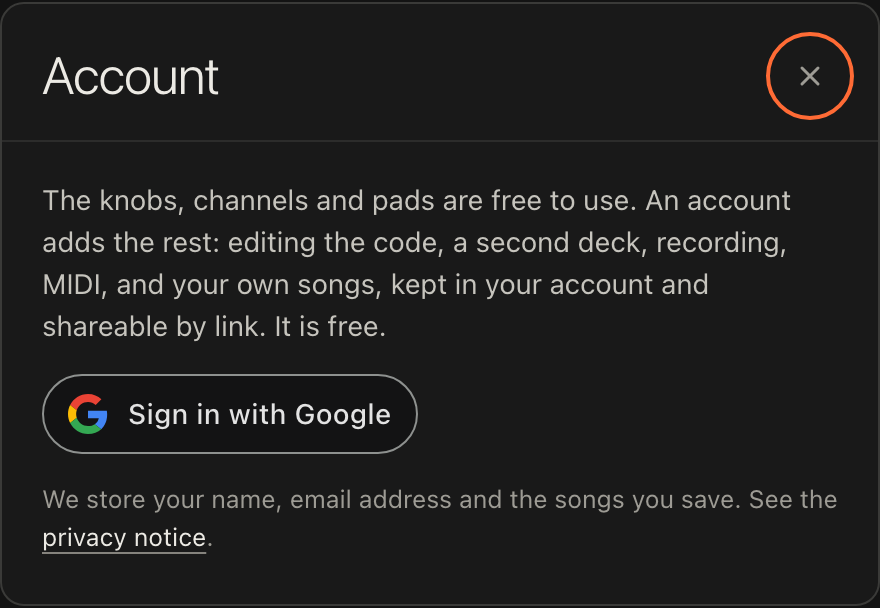
Sign in with Google is the only way in; there is no password to make. The site stores your name, your e-mail address and the songs you save. An account adds editing, saving, sharing by link, recording, video clips, the second deck with Mix and the crossfader, snapshots and MIDI, and starts with one song, User demo. Signed in, the dialog shows your name, how many songs you have, Sign out, and for the site's administrator, Admin. Signing out removes your account's songs from the browser; they stay in your account.
The Admin sheet has three tabs. Beats lists the site's beats and, for each, who can play it: Anyone makes it a featured beat, up to six and never fewer than one; Members is everyone signed in; Only me is the administrator alone. Import a strudel.cc file adds beats from a strudel.cc export, skipping patterns already present. My songs lists the administrator's own songs with Publish as beat, which adds one to the beats for the administrator alone until it is opened to others, and Update beat, which puts a song's latest code on its beat. People lists everyone with an account, when they joined and last visited, and how many songs they have; private songs are only counted. Its All shared songs view lists every song people share, with Feature and Unfeature for the community shelf, and a way to switch a song's sharing off, which closes its link for good.
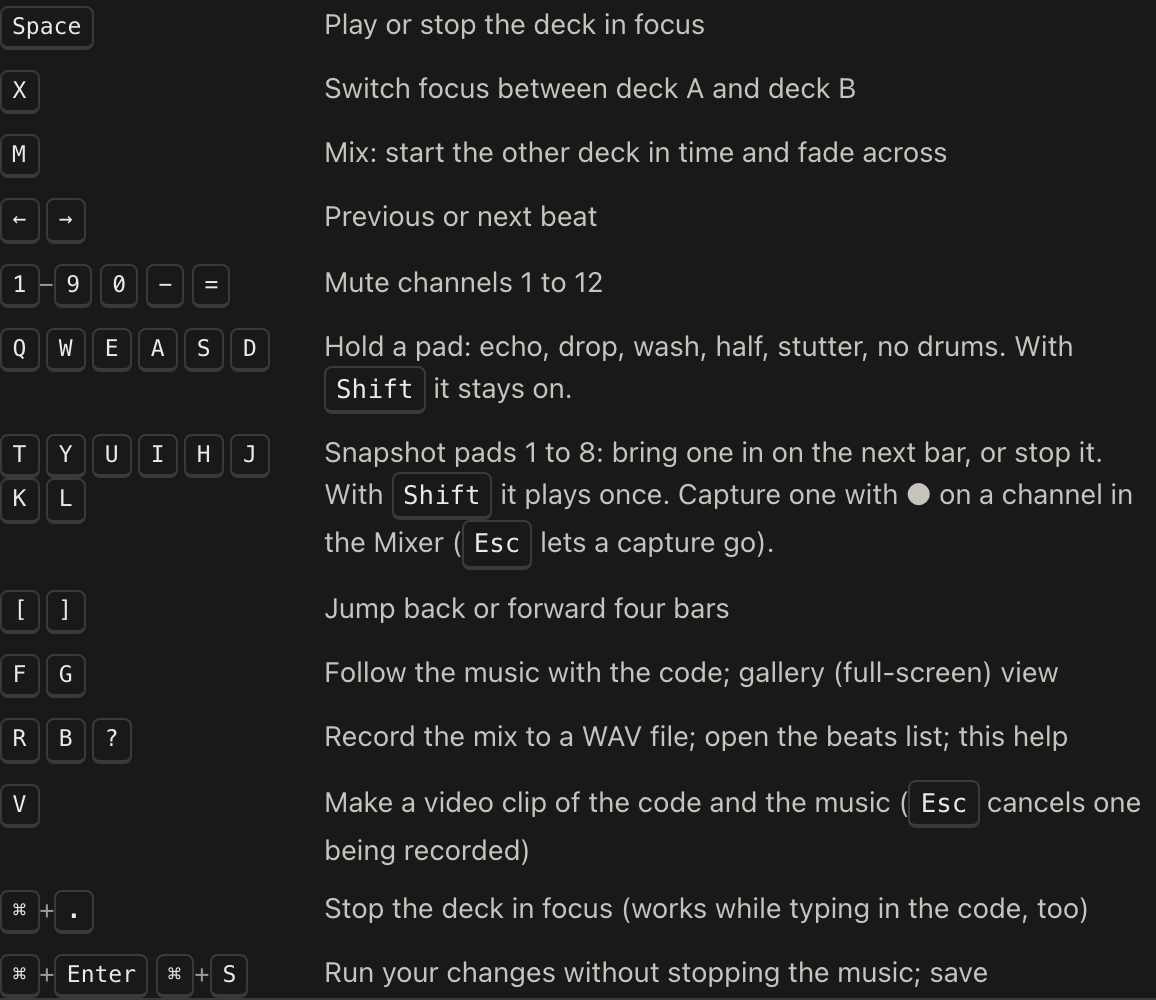
Keys
The player's own list, as the help sheet shows it; none of these work while a dialog is open, the single keys are off while you are typing, and nothing happens with Alt held.
- Space
- Play or stop the deck in focus
- X
- Switch focus between deck A and deck B
- M
- Mix: start the other deck in time and fade across
- ← →
- Previous or next beat
- 1–9 0 - =
- Mute channels 1 to 12
- Q W E A S D
- Hold a pad: echo, drop, wash, half, stutter, no drums. With Shift it stays on.
- T Y U I H J K L
- Snapshot pads 1 to 8: bring one in on the next bar, or stop it. With Shift it plays once. Capture one with ● on a channel in the Mixer (Esc lets a capture go).
- [ ]
- Jump back or forward four bars
- F G
- Follow the music with the code; gallery (full-screen) view
- R B ?
- Record the mix to a WAV file; open the beats list; this help
- V
- Make a video clip of the code and the music (Esc cancels one being recorded)
- Ctrl+.
- Stop the deck in focus (works while typing in the code, too)
- Ctrl+Enter Ctrl+S
- Run your changes without stopping the music; save
Some keys only work in one place.
- On a focused knob
- ↑ ↓ ← → adjust it, Shift makes the step fine, PageUp and PageDown take larger steps, Home and End go to the ends, and Enter, Backspace or Delete reset it.
- On a focused pad
- Space or Enter presses it.
- Inside the code
- Alt+Enter runs the edited code and Alt+. stops the deck, the same as Ctrl+Enter and Ctrl+.. Esc leaves the code.
- Esc, in order
- Cancels a clip being recorded, then lets picked bars go, then lets a capture go, then leaves MIDI Learn, then leaves the gallery, then releases a focused track.
On a Mac, Ctrl reads ⌘ throughout, and the site shows it that way.
MIDI
A MIDI controller can drive the deck; the site sends nothing back. Press MIDI at the right end of the arrangement strip, or Learn in the help sheet, then click a control on screen and move or press one on your hardware. Each hardware control drives one thing: binding it again replaces what it drove before. Press MIDI again or Esc to leave Learn. See MIDI in Perform.
- Bindable: the song's knobs and switches; every channel's M, S and fader, snapshot strips included; the six effect pads; the eight snapshot pads; the master knobs; the crossfader; Mix; and both play buttons.
- Not bindable: Sync, Latch, Reset, ●, the capture length chips, Record and Update.
- Messages: a control change sets a knob or fader to its value; on a button it presses above half and releases below. A note presses on note-on and releases on note-off, so a pad on your hardware holds a pad on screen.
- Where bindings live: in this browser, by the message's number rather than the device, so the same controller on another port keeps them and another browser starts with none. Forget bindings in the help sheet clears them all.
- Browsers: Web MIDI works in Chrome, Edge and Firefox, not Safari. Connect asks the browser for access the first time; Learn needs you to be signed in.
Addresses
| Address | What it opens |
|---|---|
/ | The player, with the first featured beat on deck A. |
/beats/<slug> | One of the site's beats on its own page, with a link preview. Each beat has one. |
/beats/<slug>#mix=… | The same beat with a mix in the address: the knob and switch positions, the mixer and the tempo. The share sheet makes these for a beat. |
/s/<uuid> | A song someone shared by link, on a player of its own with a link preview. It plays the latest saved version. |
/#song=<uuid> | The same shared song, opened on the main player. The main player asks before it runs someone else's code. |
/#copy=<uuid> | A shared song, opened to keep a copy: Edit a copy on the shared player sends you here. |
/#start=<id> | One of this guide's examples, loaded on deck A: open the Pressure Cooker example, for one. |
/learn and /learn/<area> | This guide, and one of its areas: start, play, perform, remix, build, share, reference or glossary. |
/about | The About page: what the site is, the beats, credits, and the site's contact address. |
/privacy | The privacy notice. |
What is not supported
The site is built for one thing, music made by code in a browser. These are its edges.
- No MIDI out, OSC, SuperDirt, Hydra, Csound or serial. A song that calls for them runs without them. MIDI goes one way, in.
- No audio input. The site never asks for the microphone.
- What the browser must have. Web Audio for sound at all; AudioWorklet for recording and snapshots; Web MIDI for a controller (Chrome, Edge and Firefox, not Safari); MediaRecorder for video clips; the Fullscreen API for Gallery. The site must be served over http or https, not opened from a file.
- The arrangement strip edits the first 32 bars. One cycle is one bar everywhere on the site, and a paste cannot take a song past 32.
- One runtime for both decks. The two decks share one Strudel runtime, which is why they keep one tempo and why pads like Half act on both.
- Limits: a song's code can be up to 200,000 characters; a snapshot lasts at most 30 seconds; a recording stops itself at 20 minutes.
- What the code reader needs. A knob's minimum, maximum and step must be plain positive numbers:
slider(0, -12, 12)reads as 0 to 12. See How code becomes controls. - No version history. Save writes over your song; keep a version with Save as new before you need it.
- A shared song asks first on the main site: "Run this song" or "Run and keep a copy", with "Read the code first" beside them. Its own page at
/s/<uuid>plays without asking, and without editing. - Nothing is kept while storage is blocked. A browser that refuses storage keeps no positions, snapshots or MIDI bindings between visits.