Knowledge base
Remix
A song here is code, and the code is yours to change while it plays. This page is about making a song your own: editing it live without stopping the music, the small edits with the biggest effect, cutting and rearranging its bars, borrowing a loop from one song for another, keeping the versions you like, and what happens when the song you are changing was shared by someone else.
Edit the code while it plays
Click anywhere in the code and type. That is the whole trick. On a touch screen a tap is for the music, so there editing starts with Edit in the stage bar; it is there on a desktop too, before anything has played. While you are in the code the button reads Done, and Done or Esc leaves the code without changing anything else. The single-key shortcuts are off while you type, so the letters go into the song and not to the pads.

Nothing happens to the sound until you ask. Update, or
Ctrl+Enter, runs the change without stopping the music: the deck carries on, in time,
and the new code takes over. The knobs and channels follow the new code, so a
slider() you have just typed is a knob the moment it runs, and a part you have
renamed is a channel with the new name. The tempo is left alone unless the code itself
calls setcps or setcpm.
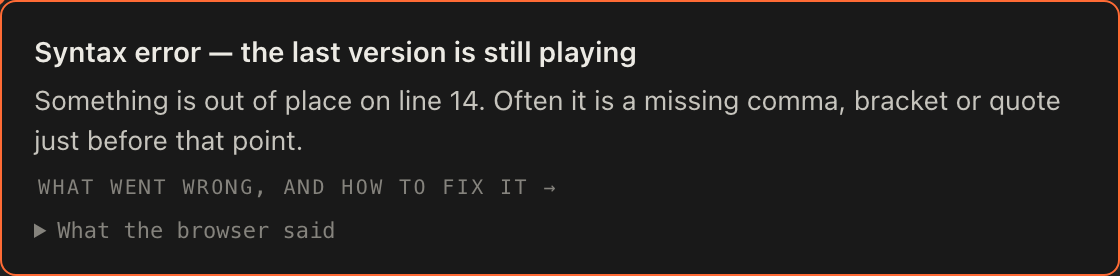
A mistake is not a disaster. If the new code cannot run, the last good version keeps playing and a notice says so in plain words: That edit did not run — the last version is still playing, or Syntax error and a hint with the line it is on. Open What the browser said for the raw message if the plain one is not enough. Fix the line and press Update again. If the code runs but names a sound that no loaded sample pack has, the song plays anyway and the status says Not in the loaded sample packs, with the names of the missing sounds. Those parts stay silent until the sound exists.
The site keeps track of what you have changed. Lines that differ from the saved song are marked orange down the side of the code, the stage bar says Unsaved changes, and the deck chip's title gets a dot, so you can see at a glance that what is playing is not what is saved. The marks stay until you save or revert.
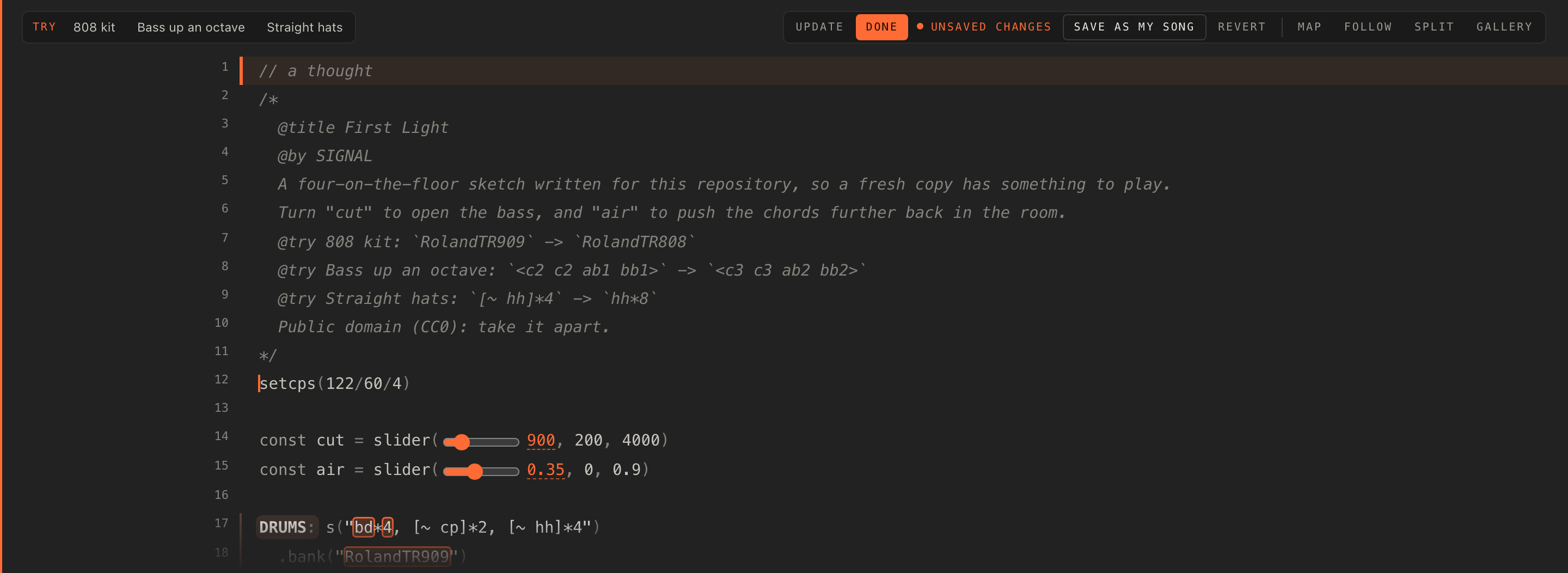 changed lines marked orange down the left side">
Experimenting is never destructive. The saved song is untouched until you press Save, and a beat is never changed at all: your version of it becomes a song of your own. So try things. Break the song, watch the notice, fix it, and if it all goes wrong press Revert and you are back where you started.

The smallest edits with the biggest effect
You do not need to understand a whole song to change how it feels. A few kinds of one-word edits do most of the work, and every one of them is a safe first step.
- Swap the kit.
.bank("RolandTR909")becomes.bank("RolandTR808")and the whole drum part changes character while the pattern stays the same. The bank is a drum machine; the words inside the pattern (bd,cp,hh) are the drums it plays. - Swap the synth.
.s("sawtooth")is buzzy,.s("triangle")is round,.s("square")is hollow,.s("sine")is a pure sub. One word, a different instrument. - Change a sample word. In
s("bd*4, [~ cp]*2, hh*8"), turncpintosdand the clap is a snare; turnhhintoohand the hats open up. - Change a subdivision.
hh*8is eight hats a bar;hh*16is sixteen.[~ cp]*2puts a clap on two and four;[~ cp]*3puts three in the bar and the groove leans. Read how the notation works in Build. - Move an octave.
note("<a1 a1 c2 g1>")is a bass line; the same witha2 a2 c3 g2is the same line an octave up.
The easiest first edit of all is one the song suggests. The Try row, top left over the code, lists up to four changes the song's author wrote for exactly this purpose. Tap one and the line changes and the music with it; tap it again and it is put back. A try is an unsaved edit like any other: the changed line is marked, and if you like it, Save as new keeps it. Open the code after tapping one and you can see what it did, which is a good way to learn what each word is for.

Here is a song written to be edited this way. Each of its four suggestions makes one of the edits above.
/*
  @title Spare Change
  Four small changes, one idea each: a different kit, twice the hats, the bass an octave up, and chords in threes.
  Tap one over the stage to hear it; tap again to put it back.
  @try 808 kit: `RolandTR909` -> `RolandTR808`
  @try Double hats: `hh*8` -> `hh*16`
  @try Bass up an octave: `<a1 a1 c2 g1>` -> `<a2 a2 c3 g2>` in BASS
  @try Chords in threes: `~ x ~ x` -> `[~ x]*3`
*/
setcps(126/60/4)

const space = slider(0.3, 0, 0.8)

DRUMS: s("bd*4, [~ cp]*2, hh*8")
  .bank("RolandTR909")
  .gain(0.8)
  ._punchcard()

BASS: note("<a1 a1 c2 g1>*2")
  .struct("x ~ x x ~ x x ~")
  .s("sawtooth")
  .lpf(900)
  .gain(0.5)
  ._scope()

CHORDS: note("<[a3,c4,e4] [a3,c4,e4] [c4,e4,g4] [g3,b3,d4]>")
  .struct("~ x ~ x")
  .s("triangle")
  .room(space)
  .gain(0.3)
Two of the same edits by hand, as they would look in the code:
DRUMS: s("bd*4, [~ cp]*2, hh*8")
.bank("RolandTR909")DRUMS: s("bd*4, [~ cp]*3, oh*8")
.bank("RolandTR808")Cut, keep and rearrange the bars
Under the stage, the arrangement strip shows which tracks play in each of 32 bars, one row per channel, with the playing bar lit. One bar is one Strudel cycle, so what you see is what you hear. You do not need to touch the code to change a song's shape: everything on the strip is done by pointing at bars.

Jump. Click a bar and the song jumps there. While the deck is stopped, clicking a bar sets where it will start. [ and ] jump four bars back or forward. Jumping is free and needs no account.
Pick bars. Drag across the strip, Shift-click a bar to pick one, or type the first and last bar numbers into the two boxes that appear over the strip. A bar of buttons comes with the selection:
- Cut
- Takes those bars out. What follows closes the gap. Delete does the same.
- Keep only
- Throws away everything except those bars.
- ‹ ›
- Moves the picked bars a bar earlier or later. ← and → do the same.
- Copy, Paste, Paste over
- Copies the picked bars; then pick where they go and Paste puts them in after those bars, or Paste over replaces them. Ctrl+C and Ctrl+V work too, within the same song.
- × or Esc
- Lets the selection go.

Silence one track. Press Arrangement to open the strip so the track names and bar numbers show, then drag along one track's row. That gives you Silence for the bars you crossed, or Bring back if they are already silent there. This is how you take the bass out of the first eight bars, or give the lead a break in the middle, without cutting anything for the other tracks.


Undo. After each trim the bar over the strip offers Undo for fifteen seconds, as long as the code has not changed in between. After that, Revert in the stage bar still puts the whole song back to its saved form.
Every visual edit is written as code
This is the idea that makes the strip more than a toy. When you cut bars, the site does not keep a private note of what you did: it writes one line of plain Strudel at the top of the song, before the first part, and runs it.
all(x => arrange([8, x.ribbon(0, 8)], [20, x.ribbon(12, 20)])) // bars kept, in order (trimmed on the deck)Read it as a list of what was kept: eight bars starting from bar 1, then twenty bars starting from bar 13, in that order. Bars 9 to 12 are gone. Another trim rewrites the same line rather than adding a second one, and when every bar is back the line is removed. A silenced stretch is written on the track itself, as a mask at the end of its chain: a 1 for each bar it plays and a 0 for each bar it does not.
BASS: note("<f1 f1 ab1 c2>*2")
  .s("sawtooth")
  .lpf(900)
  .mask("<1!8 0!4 1!20>")
Because it is code, the result plays anywhere Strudel plays, and anyone who opens your song can read exactly what you did. A trimmed song loops within the kept bars, and the strip marks where the loop now ends. The trim is an edit like any other: the changed lines are marked, Save keeps it, Revert undoes it, and Save as new keeps the trimmed version as a song of its own while the original stays as it was. If a trim cannot run for some reason, the code is put back and the last good version keeps playing.
Here is a song whose shape is built from masks, so the strip shows its form from the start. Try cutting its middle, or silencing the lead.
/*
  @title Thirty-Two
  A whole shape in one loop: eight bars of drums alone, sixteen with everything, eight to come down again.
  The masks at the end of each part are what the arrangement strip reads.
*/
setcps(124/60/4)

const cut = slider(1000, 200, 4000)

DRUMS: s("bd*4, ~ cp ~ cp, [~ hh]*4, <~ ~ ~ [~ oh ~ ~]>")
  .bank("RolandTR909")
  .gain(0.8)
  ._punchcard()

BASS: note("<f1 f1 ab1 c2>*2")
  .struct("x ~ x x ~ x ~ x")
  .s("sawtooth")
  .lpf(cut)
  .gain(0.5)
  .mask("<0!8 1!16 0!8>")

CHORDS: note("<[f3,ab3,c4] [f3,ab3,c4] [ab3,c4,eb4] [c4,eb4,g4]>")
  .struct("~ x ~ x")
  .s("gm_epiano1")
  .room(0.4)
  .gain(0.4)
  .mask("<0!8 1!8 1!8 0!8>")

LEAD: n("<[0 ~ 3 5] [7 ~ 5 3] [0 ~ 3 5] [8 ~ 7 5]>")
  .scale("F4:minor")
  .s("triangle")
  .delay(0.3)
  .gain(0.2)
  .mask("<0!16 1!8 0!8>")
Capture loops from one song into another
A snapshot is a recording of one channel alone, exactly as it sounds right now with the knobs where they are, for 1, 2, 4 or 8 bars from the next bar line. It lands on one of eight pads and comes back in on a bar line when you tap it, following the deck's tempo like a record. The mechanics, from the ● button on a channel to the snapshot pads, are in Perform. Here is why a remixer cares.
Snapshots are remix material. Capture a riff from one song, load a second song on the same deck, and the riff is still on its pad: tap it and it plays over the new song, in time. Capture a fill, a vocal chop or a drum break and you have a loop that belongs to you, not to the song it came from. Choose the length to match the idea: one bar for a drum pattern, four or eight for a riff that takes a few bars to say itself.
To keep a loop around, right-click a snapshot pad (or press and hold it on a touch screen) for its sheet: rename it, download it as a WAV, clear the slot, or Pin it to a deck's mixer. Pinned, it becomes a looping channel of its own on that deck, with a level, mute and solo, starting muted until you bring it in. That is how you lay a riff from one song under the other deck's song and mix the two as if they were one.
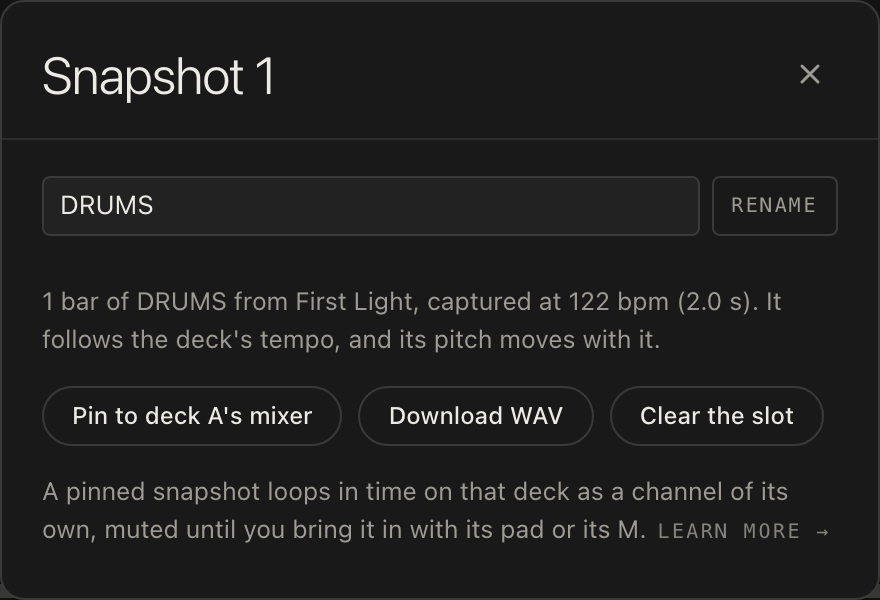
The best snapshots come from parts that stand on their own. This song is written around one: solo HOOK, press ● on it, and you have a riff to carry anywhere.
/*
  @title Loose Riff
  One riff that stands on its own. Solo HOOK and it still works; the beat underneath is as plain as it gets.
  "shine" sets how much of the riff comes back as an echo.
*/
setcps(120/60/4)

const shine = slider(0.3, 0, 0.7)

HOOK: n("<[0 ~ 3 ~ 5 ~ 3 7] [0 ~ 3 ~ 5 ~ 10 7]>")
  .scale("G3:minor")
  .s("gm_lead_2_sawtooth")
  .lpf(2200)
  .delay(shine)
  .gain(0.35)
  ._pianoroll()

KICK: s("bd*4")
  .bank("RolandTR909")
  .gain(0.85)
  ._punchcard()

HATS: s("[~ hh]*4")
  .bank("RolandTR909")
  .gain(0.4)
Save, and keep versions
Nothing you type is kept until you say so. The stage bar offers the ways to keep it, and which ones you see depends on whose song is on the deck.
- Save (Ctrl+S)
- Writes over your own song. Only the owner of a song can save over it; on a song that has not changed, Ctrl+S says Nothing to save.
- Save as new
- On your own song, keeps the version on the deck as another song of yours and leaves the original as it was.
- Save as my song
- On a beat or on someone else's shared song you have changed, keeps your version as a song of your own. The original is never touched.
- Save a copy
- Takes a beat or an example from this guide as it is, unchanged, into My songs, so you can work on it later.
- Revert
- Throws your changes away and restarts the saved version.
There is no version history. A song is its latest saved code, and Save replaces what was there. So the way to keep a stage you like is Save as new: a song of yours called, say, "Harbour Lights (sparse)" next to "Harbour Lights". Do that before a big experiment and both versions stay yours. The song list's Duplicate does the same for a song that is not on the deck.
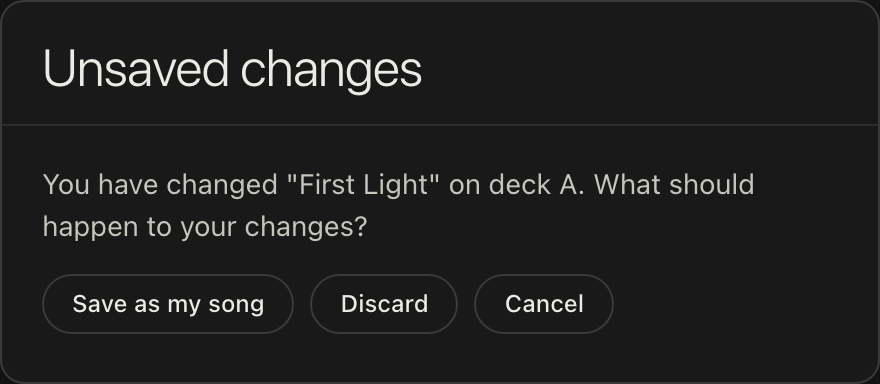
If you choose another song, sign out or close the page with unsaved changes, the site asks first: Save, Save as new (or Save as my song when the song is not yours), Discard, or Cancel to stay where you are.
Your songs live in the song list under My songs, each with when it was last saved and whether it is shared. Every one has a ⋯ menu: Rename, Duplicate, Share… and Delete, which asks Really delete? before it goes.
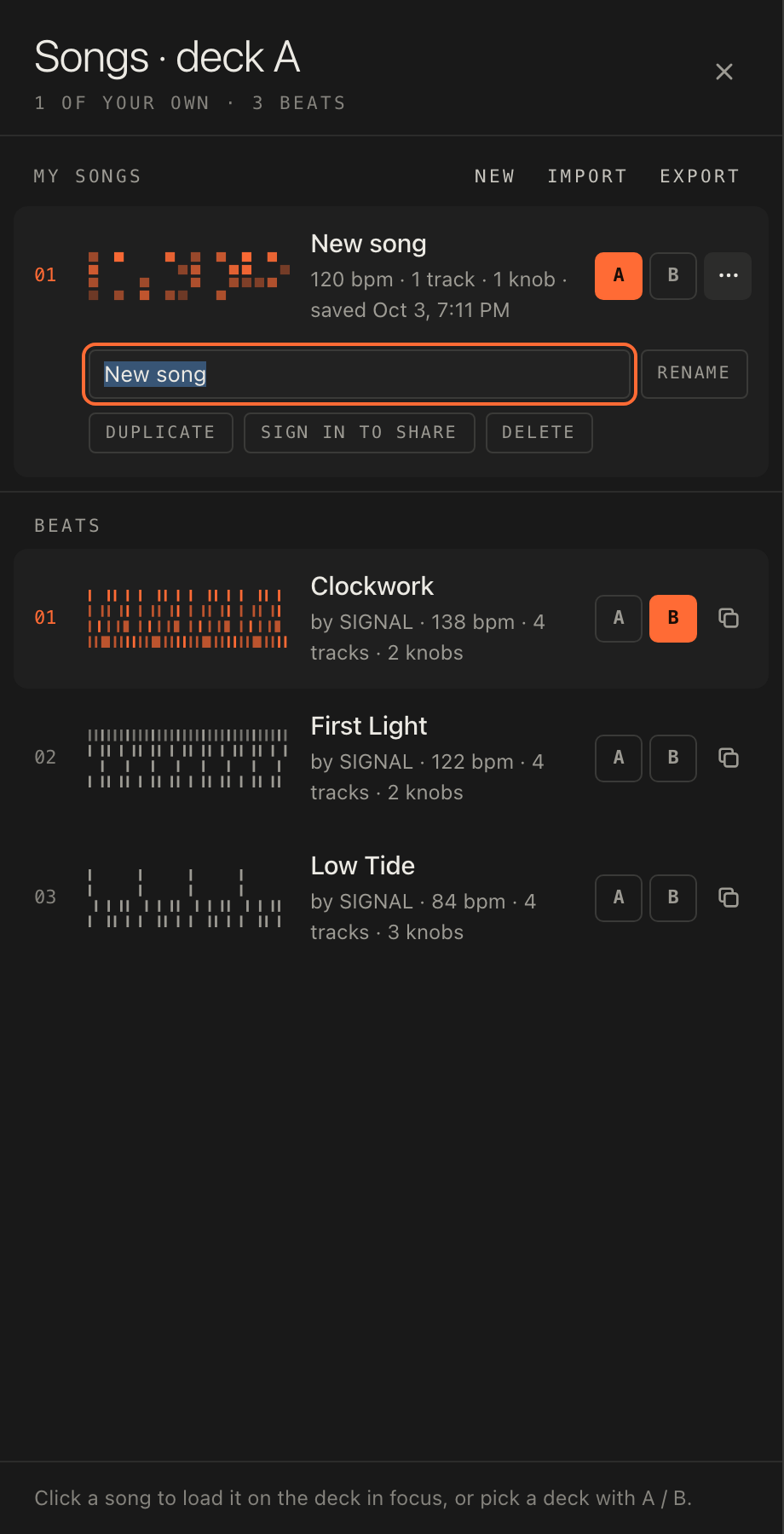
A copy remembers where it came from. A song you made from a beat, or from a song someone shared, says Remix of "Low Tide" (and by whom, for a shared song) in the song list and on the curtain before it plays. It credits the song, never the account behind it, and the credit stays with the copy when you share it on.
Someone else's song
A song shared by link opens on the shared-song player: a page of its own that says who shared it and shows the code on the stage. Anyone with the link can press play and work the song's knobs, channels and pads, with no account and nothing to install. Nothing done there is kept, and nothing there is yours, so the suggestions and the editor are not offered: it is a place to listen and play, not to change.
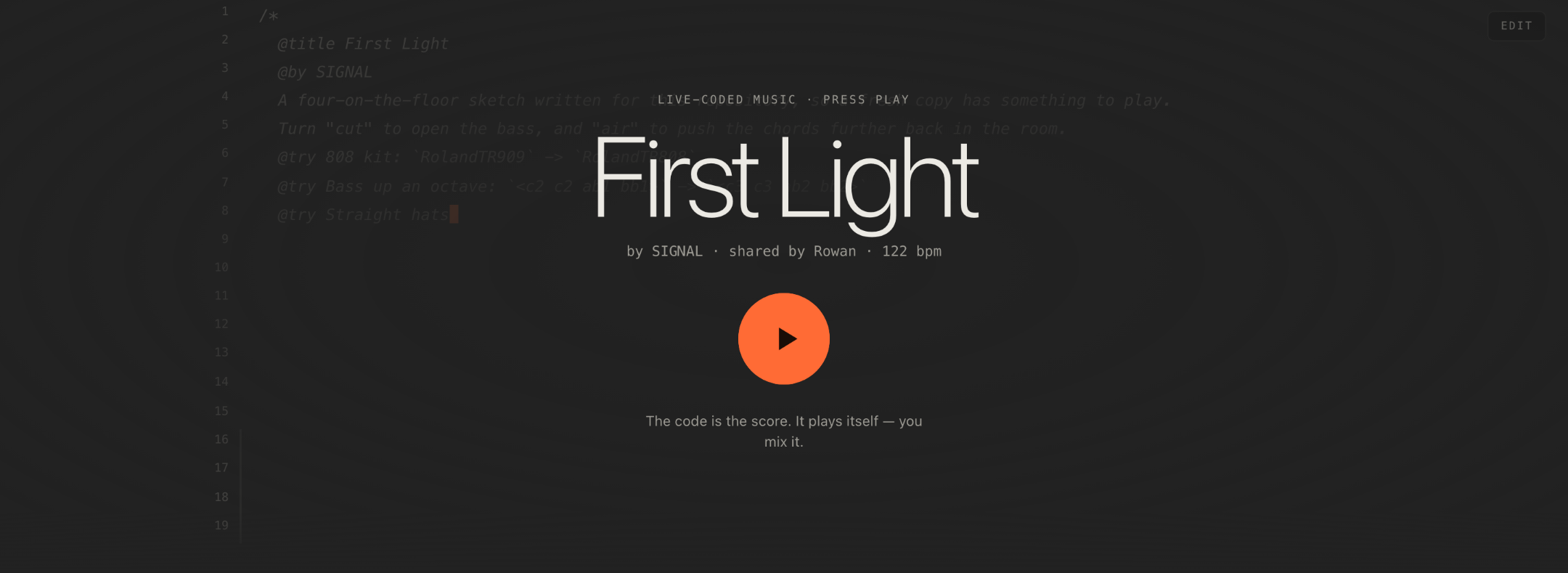
To change it, press Edit a copy. That takes the song over to the main site, where you sign in (free, one click with Google) and meet a question: Run and keep a copy, or Read the code first. One click runs the song and makes a copy of it in My songs, credited Remix of the original. From there it is your song: edit it, trim it, save it, share it on.
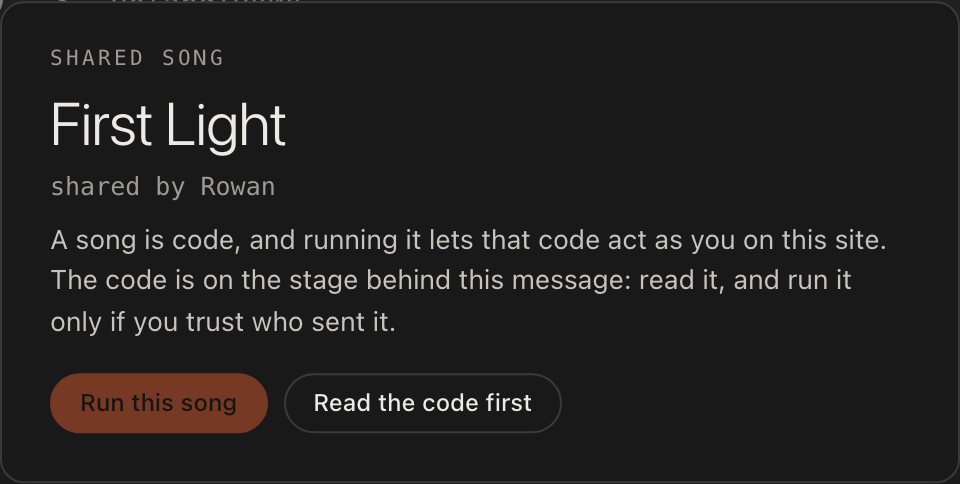
The question is there for a reason. A song is code, and running code on the main site lets it act as you: it could read your songs, change them or share them. The shared-song player is a separate address where nobody is signed in, so a stranger's song can run there freely. On the main site, where you are signed in, someone else's code never runs as you until you say so, and Read the code first lets you look before you decide. The same question appears for any song that arrives from outside, which is why it does not go away once you have answered it for one.
Your copy carries the credit with it. Change it as much as you like and share it on: whoever opens it sees that it is a remix of the original and who shared that. The person who shared the original never sees your copy, and their song is never touched.