Knowledge base
Play with a beat
A song on Hack The Beats is a short program, and everything the site shows you is read from it: a channel for every part, a knob for every number the author left open, a map of what is where. This is everything you can do to a song without changing a line of its code. None of it needs an account.
The stage
The big panel of code is the stage. It is not a listing beside the music: it is the
score, and the music is being read from it as you watch. Every word in a pattern
lights up at the moment it sounds, so you can see the kick land on the bd, the clap on the
cp, the chord on the note names.
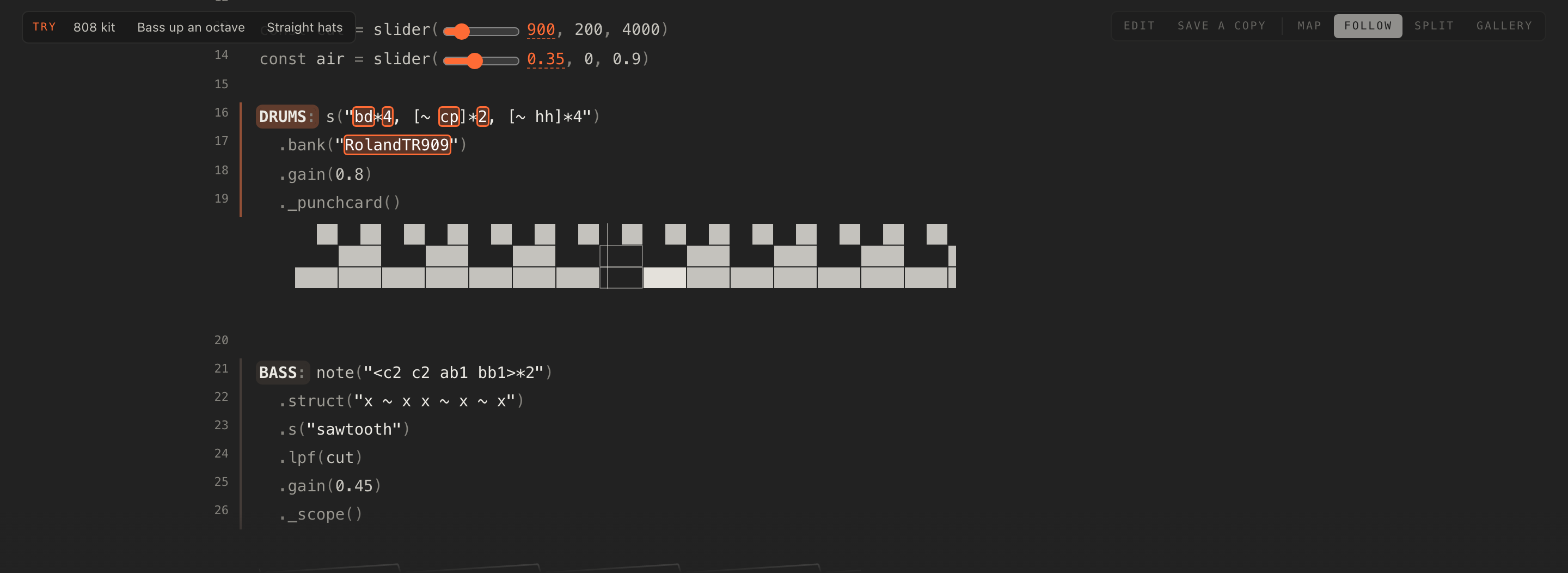
Some lines carry a drawing of their own. A part that ends in ._punchcard(), ._scope() or
._pianoroll() draws an inline visual under that line: a grid of
hits, a live waveform, a roll of notes. The drawing dims when the part is muted, and it is one of the things the
author chose to show you, so it is worth a look.
Three things in the code answer to a click, even before you edit anything:
-
A track label (
DRUMS:,BASS:) mutes its part. The pointer says Click to mute, or Click to bring in when the part is already off. - A highlighted number belongs to a knob or a switch on the deck. Click it and the deck finds that control for you.
-
An inline slider sits under each
slider()in the code. Drag it and the number changes in both places at once.

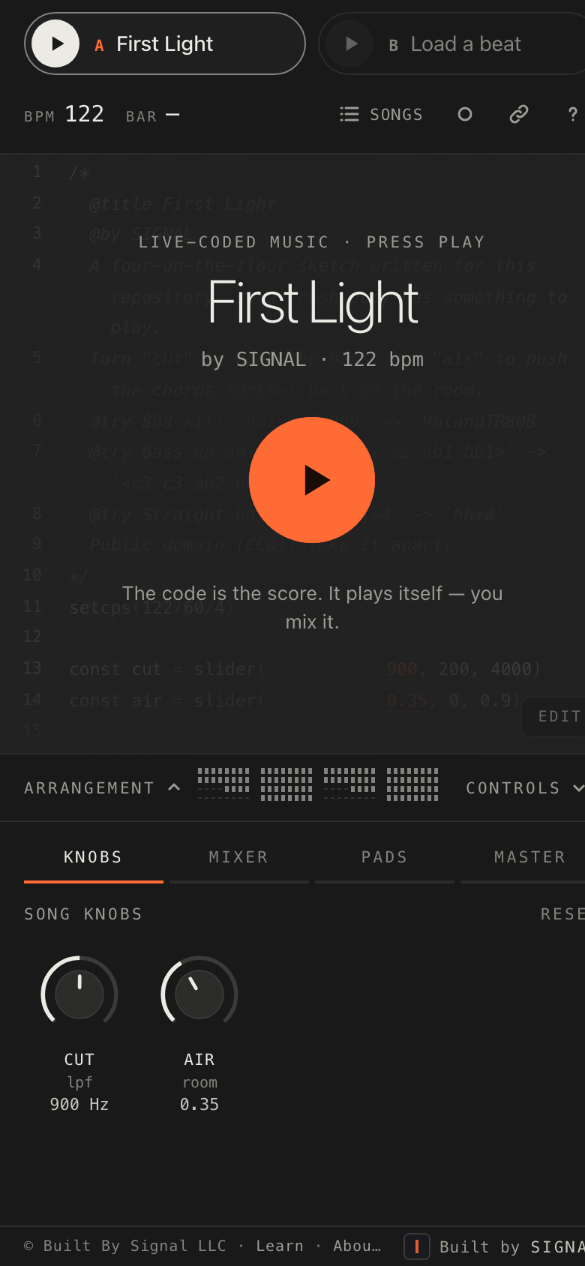
slider() gets a slider of its own in the code, and dragging it turns the matching knob.Until you choose to edit, the code is locked: something to look at and click on, not something you can type into. With a mouse, a click on the text itself starts editing, and so does the Edit button in the stage bar. On a phone or a tablet a tap is for the music, never for the caret, so editing only ever starts with Edit. Signed out, the button says what it needs: Sign in to change the code. What happens next is in Remix.
Channels
Every labelled part of the song is a channel, and the deck's Channels
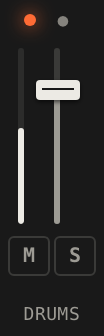
panel shows one strip for each: a level fader with a real meter behind it, M to mute,
S to solo and ● to capture it as a snapshot. The
names are the labels from the code, so a song with KICK:, HATS: and BASS:
gives you a kick strip, a hats strip and a bass strip.
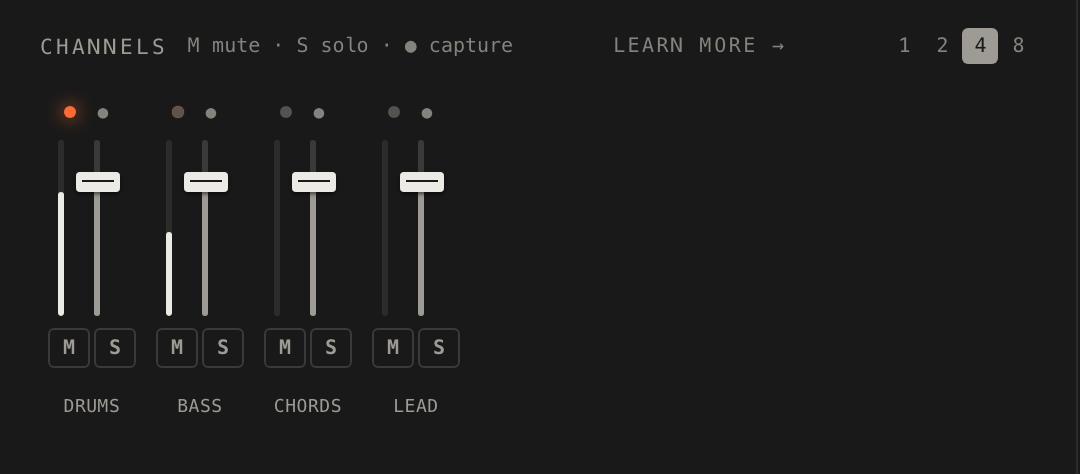
The keys 1 to 9, then 0, - and =, mute channels 1 to 12 in the order they sit on the deck, which is the order they appear in the code. That is the fastest way to drop a part and bring it back on the beat.
The name at the top of a strip is a button. Click it and the deck gives that track the focus: its code and its drawing stay bright while everything else fades back. Click the name again, or press Esc, to let it go. It is a way to watch one part without silencing the others.
Mute, solo and level survive an edit. Change the code and run it again, and any part that keeps its label keeps its fader and its mute, so a performance is not undone by a fix. A part that is renamed comes back fresh. The small light at the top of each strip pulses with the part, which is the quickest way to see who is playing when a dozen strips are side by side.
Mute and solo
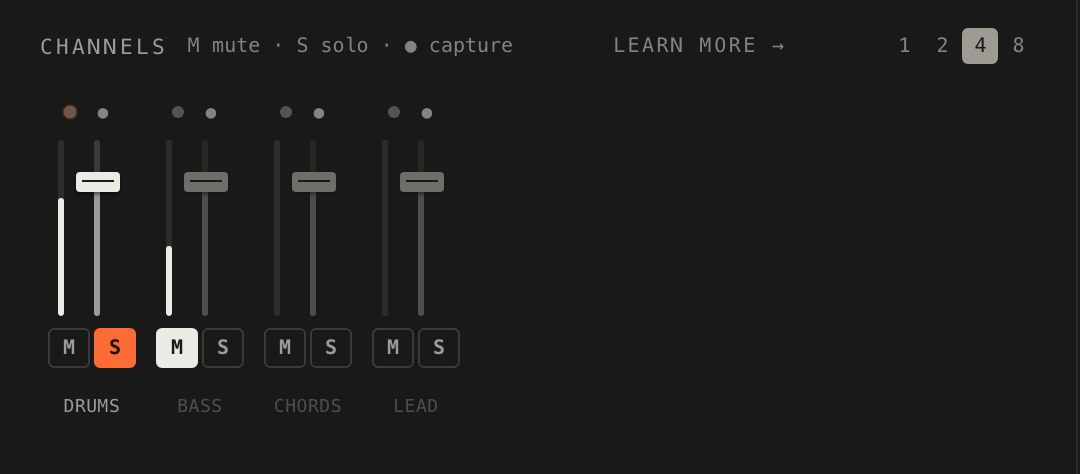
Mute is simple: the part goes silent. Solo is the DJ's version of the same idea turned round: as soon as any channel is soloed, only the soloed channels sound. Solo two of them and you hear those two. Un-solo the last one and the full mix returns. A mute set while a channel is soloed is kept, and comes into effect when the solo is released.
Some parts come up muted on purpose. An author who names a part with an underscore at the start or the end,
_PAD:, is leaving it for you to bring in: a muted layer. Its strip
says Switched off in the code — unmute to bring it in, and its label in the code is dim. Press
its M, or click its label, and the part arrives. Reset mutes it again, because
that is what the code says.
A strip with its name underlined has a missing sound: the part asks for a sample that none of the loaded packs has, so it stays silent. Rest on the strip to read which sound it wanted. It is a sign to the author, not something you can fix from the deck.
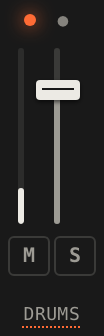
On a phone, or in a short window, the deck shows one panel at a time with four tabs across the top: Knobs, Mixer, Pads and Master. The channels are behind Mixer. A song written as a single pattern, with no labels, has nothing to split into strips, and the panel says so: This beat is a single pattern, so there are no separate channels.
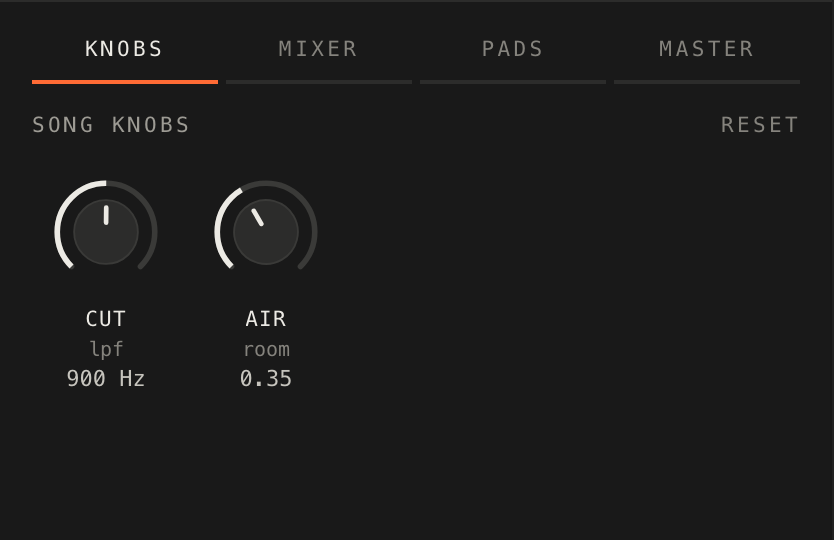
Knobs
A song's author opens a number to you by writing it as a slider(). Each one becomes a
knob on the deck and a slider in the code at the same time. Turn either one and the number
in the code is rewritten as you go, without the song being re-run: the music carries on, with the new value in
it. Nothing stops, nothing restarts.
/*
  @title Night Ferry
  A slow crossing after dark: a plain beat, a bass that opens as "pressure" turns, and a pad waiting below deck.
  Mute DRUMS and the bass carries it alone; unmute PAD when the lights come up.
  @try Rounder bass: `s("sawtooth")` -> `s("triangle")` in BASS
*/
setcps(118/60/4)

const pressure = slider(1200, 300, 4000)

DRUMS: s("bd*4, [~ cp]*2, hh*8")
  .bank("RolandTR909")
  .gain(0.8)
  ._punchcard()

BASS: note("<d2 d2 f2 a1>*2")
  .struct("x ~ x x ~ x ~ x")
  .s("sawtooth")
  .lpf(pressure)
  .gain(0.45)
  ._scope()

_PAD: note("<[d3,f3,a3] [d3,f3,a3] [f3,a3,c4] [a2,c3,e3]>")
  .s("gm_pad_halo")
  .attack(0.3).release(1)
  .room(0.5)
  .gain(0.3)
Look at the line const pressure = slider(1200, 300, 4000). That one line is the whole deal: the knob
is named PRESSURE, it starts at 1200 and runs from 300 to 4000. Further down, .lpf(pressure)
is where it goes: it feeds the bass's filter, so turning it opens and closes the bass. Open the example in the
player and turn it while the bass plays.
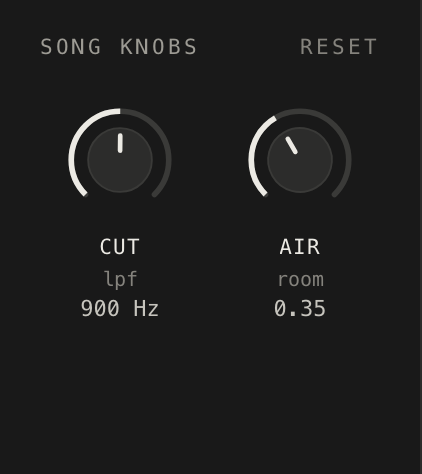
slider(), with Reset at the top right.
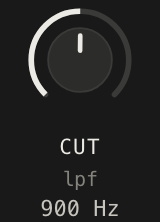
Under each knob is a readout, the number as the code will see it. When a knob feeds a
filter directly, the readout speaks in the filter's language, in Hz or kHz, so a knob on a low-pass reads 1.20
kHz rather than a bare number. Beneath that is a sub-label naming what the knob shapes, read from the code: a
knob that feeds lpf on BASS says so. A knob feeding several parts at once, a
macro, lists up to two of them. Rest on the knob for the full list.
Turning a knob
- Drag it up and down, or roll the mouse wheel over it.
- With it focused, ↑ and ↓ step it; hold Shift for fine steps; Home and End go to either end.
- Enter, or a double-click, puts it back to the value in the code.
- Drag the slider under the number in the code instead, if that is where you are looking.
Reset, at the top of the panel, is the bigger version of that: it puts every knob and every switch back to what the code says, un-mutes and un-solos the channels, returns the faders to full, and sets the tempo back to the song's own. It is the way home after an experiment.
The site remembers where you left the knobs, the switches and the mixer, per song, in this browser. Come back to a beat tomorrow and it is set the way you left it. Your own songs keep their settings with the song, and a song opened from someone's shared link is not remembered at all: it plays fresh each time.
A beat with no slider() in its code has an empty Knobs panel and says so: This beat has no
sliders in its code. The mixer and master still work.
Switches
A switch is a knob that chooses between things rather than sliding between them. When a song keeps a whole number at the top of its code and explains what the values mean, that number becomes a stepped knob on the deck, placed before the sliders, with switch as its sub-label and the name of the chosen option as its readout. Turn it and the readout steps from intro to groove to drop.
/*
  @title Two Doors
  Two numbers with a legend become switches. "section" opens the song a step at a time; "mood" picks which scale it walks.
  section: 0 intro, 1 groove, 2 drop
*/
setcps(120/60/4)

const section = 0
const mood = 0 // 0-1
const tone = slider(900, 200, 4000)
const key = ["E2:minor", "E2:dorian"][mood]

KICK: s(["bd ~ ~ ~", "bd*4", "bd*4"][section])
  .bank("RolandTR909")
  .gain(0.9)
  ._punchcard()

HATS: s(["~ ~ hh ~", "[~ hh]*4", "hh*8"][section])
  .bank("RolandTR909")
  .gain(0.4)

CLAP: s("~ cp ~ cp")
  .bank("RolandTR909")
  .gain([0.3, 0.5, 0.6][section])

BASS: n("<0 0 3 5>*2")
  .scale(key)
  .struct(["x ~ ~ ~ x ~ ~ ~", "x ~ x x ~ x ~ x", "x*8"][section])
  .s("sawtooth")
  .lpf(tone)
  .gain(0.5)
  ._scope()

LEAD: n("<[0 2 4 7] [7 4 2 0]>")
  .scale(key)
  .add(14)
  .s("triangle")
  .delay(0.3)
  .gain([0, 0.15, 0.25][section])
Two switches live in this one. section is explained by the legend line in the header,
section: 0 intro, 1 groove, 2 drop, and mood by the comment after it, // 0-1.
Either way of explaining a number works. Follow section down the code and you can see it choosing a
kick pattern, a hat pattern, a bass line and a lead level at the same time.
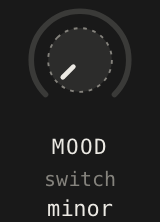
The difference from a knob matters. A knob changes a number inside a running pattern, so nothing has to stop. A switch can change anything at all, because turning it rewrites the number and then runs the song again, a moment later, with the new value. That is how one switch can change the scale, swap the drum pattern, or decide which parts exist. You will hear the song re-enter on its new setting rather than glide to it, and that is the trade: a switch does bigger things, a knob does smoother ones. Both are put back by Reset.
Try
Some songs offer their own suggestions. When an author writes @try lines in
the header, a row appears over the top left of the code once the song has played, labelled
Try, with up to four chips. Each chip is one change the producer thought you should hear.

- Tap a chip. The code is rewritten, the song runs with the change, and the changed line is marked down the side.
- Tap it again and the line is put back exactly as it was.
- Tap another chip while one is on, and both changes play together.

/*
  @title Spare Change
  Four small changes, one idea each: a different kit, twice the hats, the bass an octave up, and chords in threes.
  Tap one over the stage to hear it; tap again to put it back.
  @try 808 kit: `RolandTR909` -> `RolandTR808`
  @try Double hats: `hh*8` -> `hh*16`
  @try Bass up an octave: `<a1 a1 c2 g1>` -> `<a2 a2 c3 g2>` in BASS
  @try Chords in threes: `~ x ~ x` -> `[~ x]*3`
*/
setcps(126/60/4)

const space = slider(0.3, 0, 0.8)

DRUMS: s("bd*4, [~ cp]*2, hh*8")
  .bank("RolandTR909")
  .gain(0.8)
  ._punchcard()

BASS: note("<a1 a1 c2 g1>*2")
  .struct("x ~ x x ~ x x ~")
  .s("sawtooth")
  .lpf(900)
  .gain(0.5)
  ._scope()

CHORDS: note("<[a3,c4,e4] [a3,c4,e4] [c4,e4,g4] [g3,b3,d4]>")
  .struct("~ x ~ x")
  .s("triangle")
  .room(space)
  .gain(0.3)
Open this one and work through the four chips. Each teaches one thing: a different drum kit, hats twice as busy, the bass an octave up, the chords in threes against a beat in fours. Watch the marked line while you listen and you will see exactly what each change is.
A chip goes grey when the code no longer matches what it expects, usually because the line it would change has been edited since. It says That part of the code has changed since. Nothing is saved by trying: the row makes an ordinary edit on the stage and takes it away again, so it works signed out, and the song is never changed for anyone else. Signed out, the message that confirms a change ends with the rest: Sign in to keep your own version.
For a beginner, Try is the gentlest way into the code: a change you can hear, with the line that made it pointed out. For a producer, it is a set of instant remix experiments on someone else's track, ready before you have read a line. The Try row is not shown on the player for a shared link, nor in Gallery. How to write your own is in Build.
Think of Try as a conversation with the author. The chips are their notes in the margin, "listen to this with the hats doubled", and tapping one is reading the note aloud. If a change sounds better to you than the original, that is where editing starts: the line is already on the stage, marked, waiting for an account to keep it.
The song map
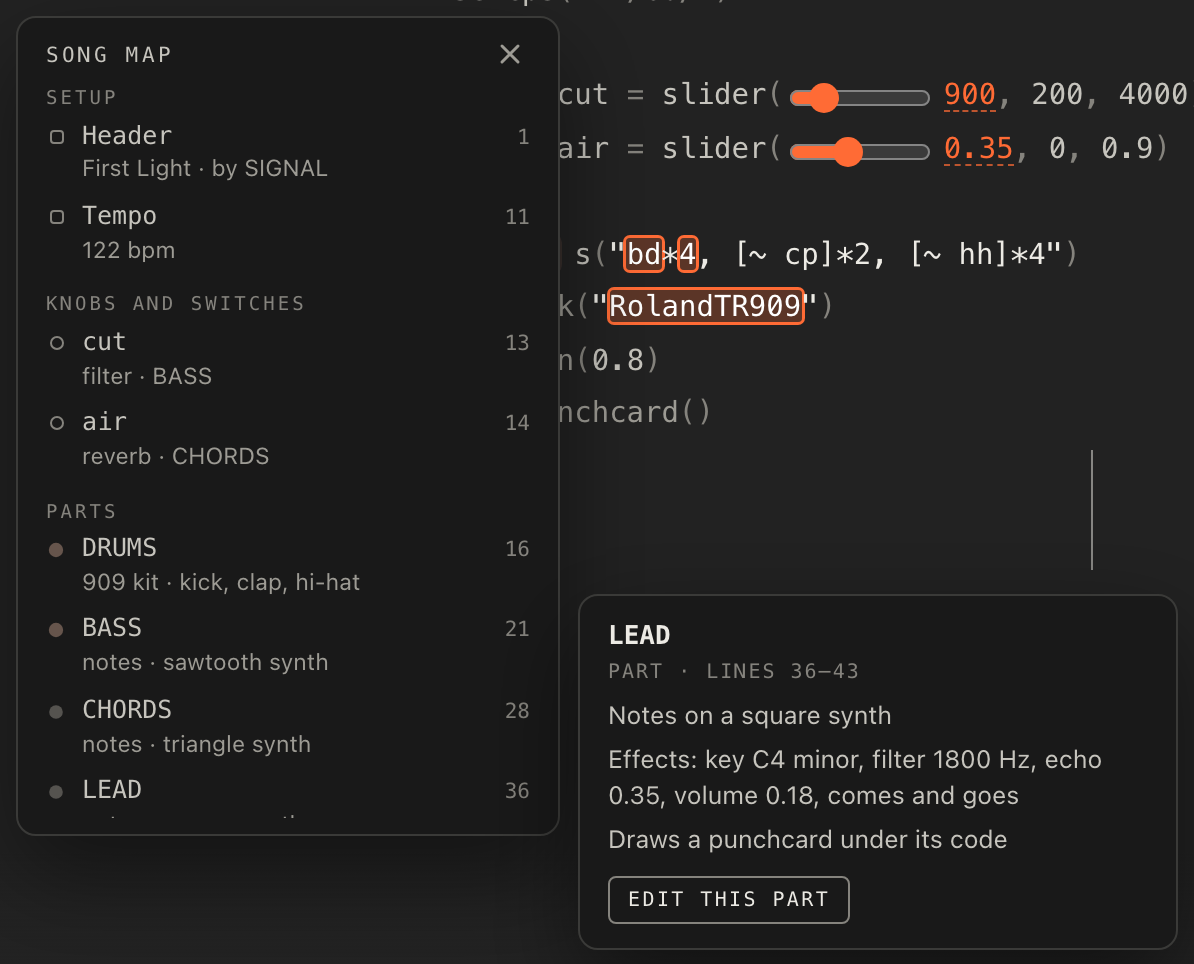
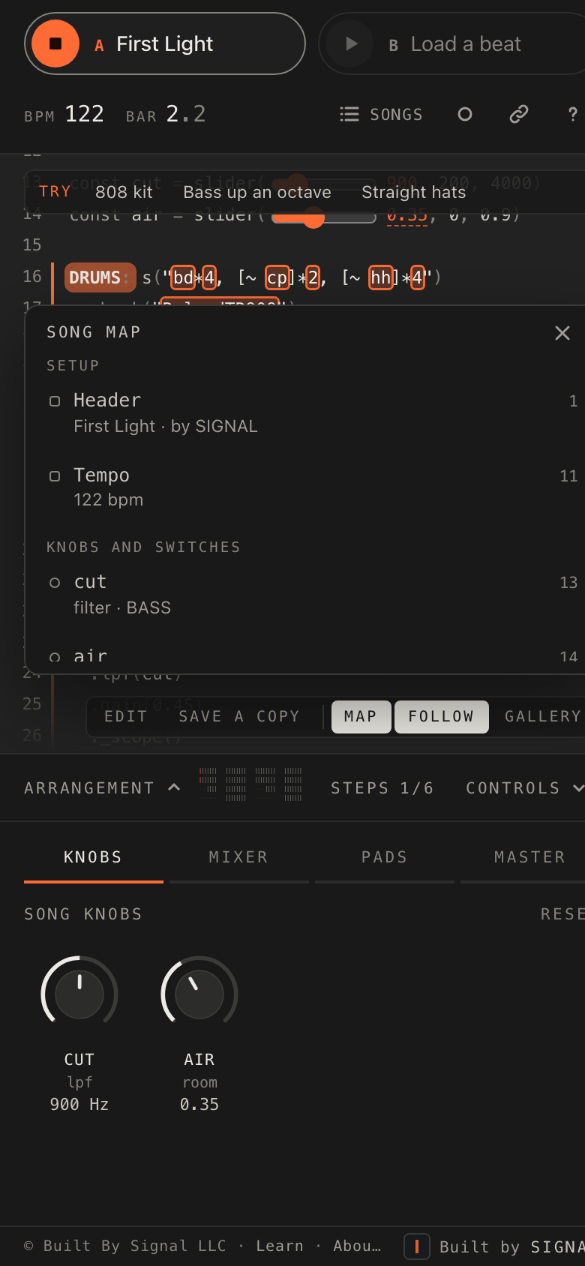
The song map lists what is in the code, in four groups: Setup (the header, the tempo and the sample packs), Knobs and switches, Parts (one entry per channel) and Helpers (values the parts share). In a wide window it sits beside the code, in the empty margin. When the window is narrower, or Split view is on, it waits behind the Map button in the stage bar.
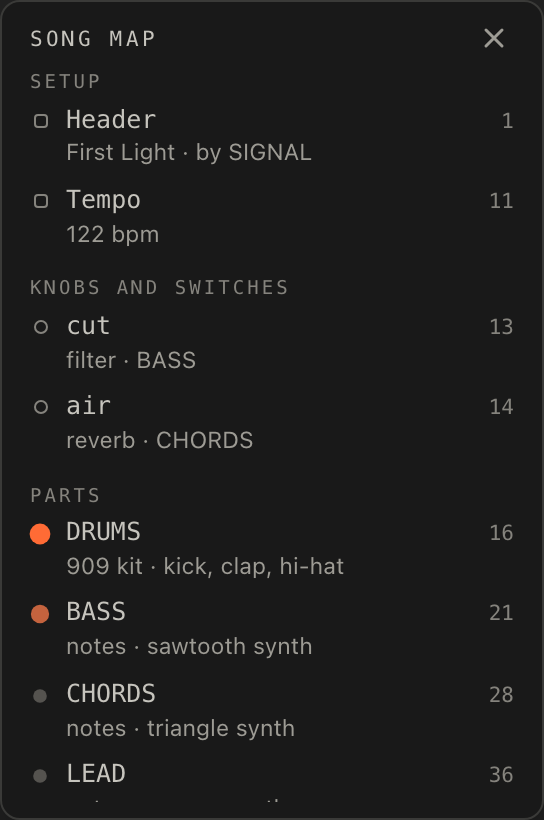
Rest the pointer on an entry, or tab to it, and a card opens. It is written from the code itself: the sounds a part uses, its effects in plain words (a filter, an echo, a room), the knobs that reach it, and, if the author left a comment beside the part, that comment as a note. Click the entry and the code glides to that place. The card's Edit this part opens the code with the caret at its start (signed out it reads Sign in to edit). The header, the tempo and a knob each have the matching button.
/*
  @title Harbour Lights
  A note above each part is what the song map shows for it. Open the map and read the song before you hear it.
  "haze" is the only knob: it sets how far away the keys and the pad sit.
*/
setcps(110/60/4)

// how far back the keys and the pad sit
const haze = slider(0.35, 0, 0.9)

// a dip on every beat, so the chords breathe with the kick
const duck = "[0.5 1]*4"

// kick on every beat, a clap on two and four, hats on the offbeats
DRUMS: s("bd*4, ~ cp ~ cp, [~ hh]*4")
  .bank("RolandTR808")
  .gain(0.8)
  ._punchcard()

// a bass line that walks between two chords
BASS: note("<c2 c2 f2 g2>*2")
  .struct("x ~ ~ x ~ x ~ ~")
  .s("square")
  .lpf(600)
  .gain(0.45)
  ._scope()

// electric piano chords, ducked by the helper above
KEYS: note("<[c4,eb4,g4] [c4,eb4,g4] [f3,ab3,c4] [g3,bb3,d4]>")
  .s("gm_epiano1")
  .gain(duck)
  .room(haze)

// a soft pad under everything, ducked the same way
PAD: note("<[c3,g3] [c3,g3] [f3,c4] [g3,d4]>")
  .s("gm_pad_halo")
  .attack(0.4).release(1)
  .gain(duck.mul(0.25))
  .room(haze)
Open this one with the map showing. Every part has a comment above it, and each of those comments is what the map says about the part, so you can read the whole song before you have heard it. Notice the two Helpers: a knob's name and a shared pattern that two parts borrow.
With the map focused, ↑ and ↓ move through the entries, Home and End jump to the ends, and Esc closes it. On a phone, choosing an entry closes the map and takes you to the code.
Views
Three buttons in the stage bar change how the code is shown, and a fourth kind of view comes from the mixer.
- Follow (F)
- The code glides to whichever track has just come in, and otherwise tours the tracks that are playing. Scroll by hand and it leaves you alone for a few seconds, then picks the tour up again. It is on by default and remembered.
- Split
- Both decks' code side by side, so you can watch two songs at once. The site switches to Split by itself on a wide window while a mix is fading from one deck to the other.
- Gallery (G)
- Full screen, code only, in larger type: the view for a projector or a wall. The pads and channels still answer to their keys. Exit gallery, or Esc, brings the deck back.
- Focus
- Click a channel's name in the mixer to focus that track: its code and visual stay bright and the rest fades. Click the name again, or press Esc, to release it.
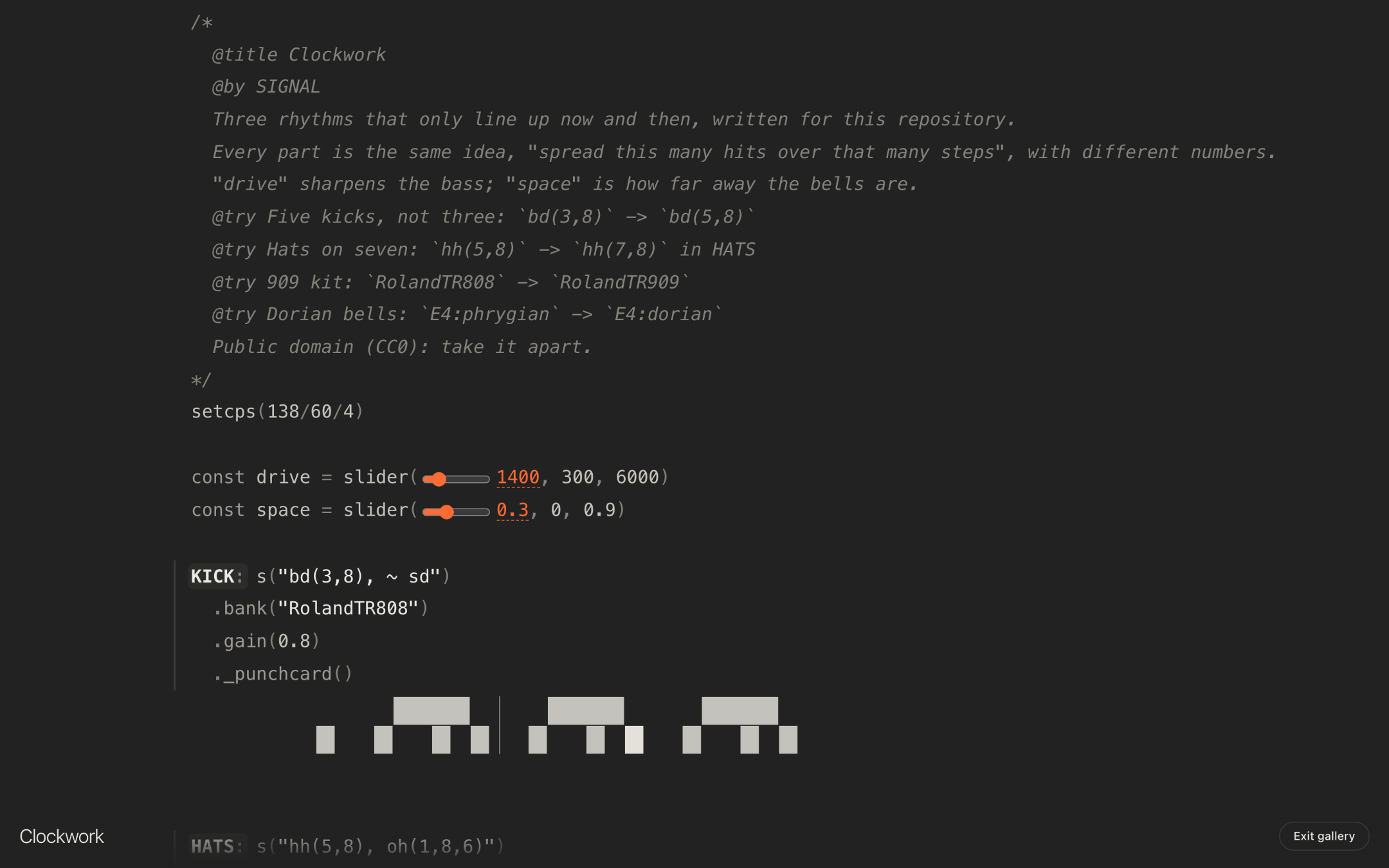
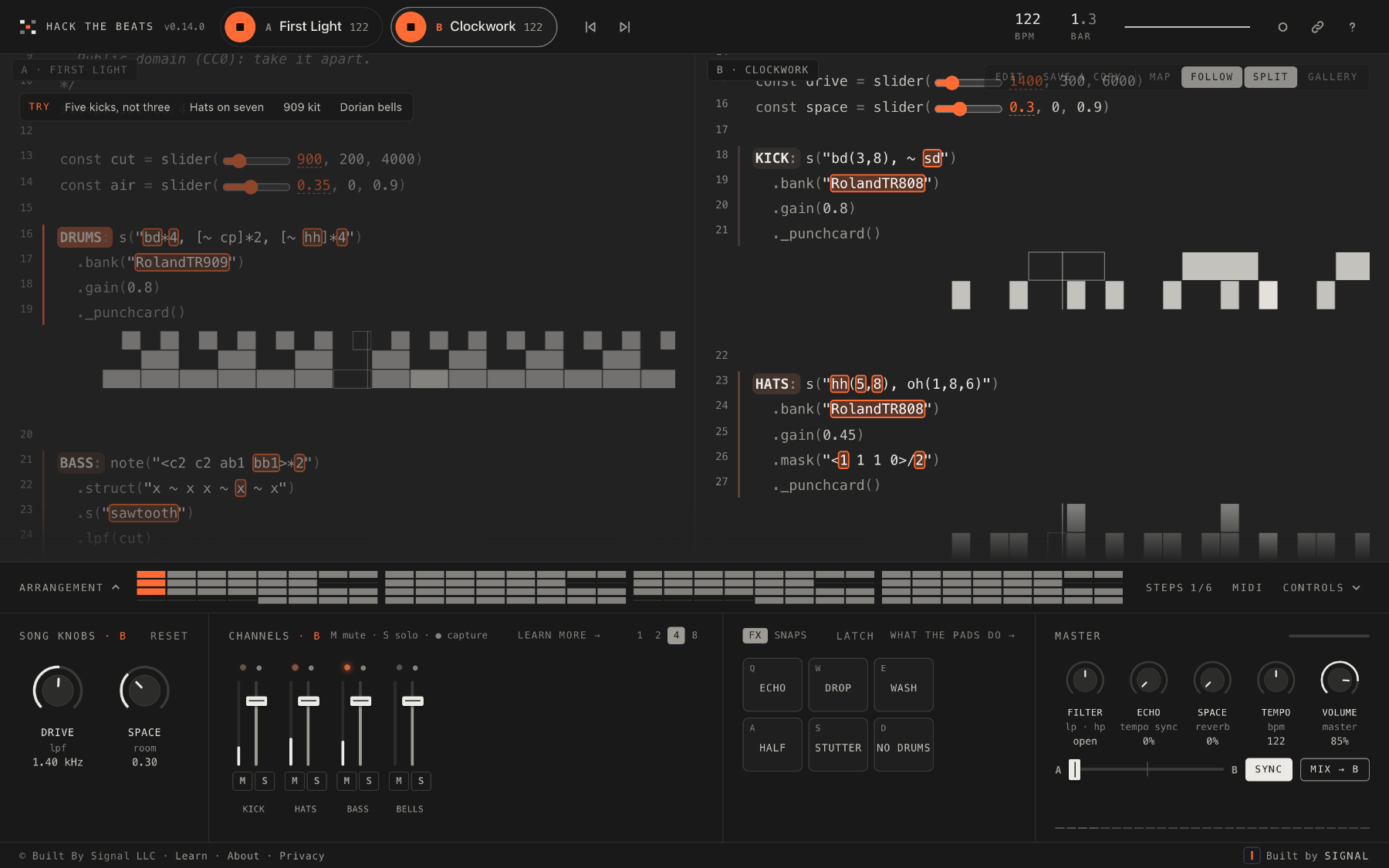
Esc does the most recent thing first: it leaves Gallery before it releases a focus, and releases a focus before it leaves the code. Press it until you are where you want to be.
Beats and songs
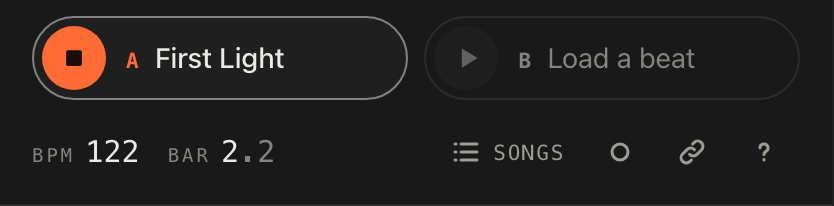
The song list is the drawer titled Beats. It opens from the Songs button in the top bar, from the Hack The Beats mark, by clicking the chip of the deck that is already in focus, or with B. ← and → step to the previous or next song without opening it. When two decks are loaded the title says which deck you are choosing for: Songs · deck B.
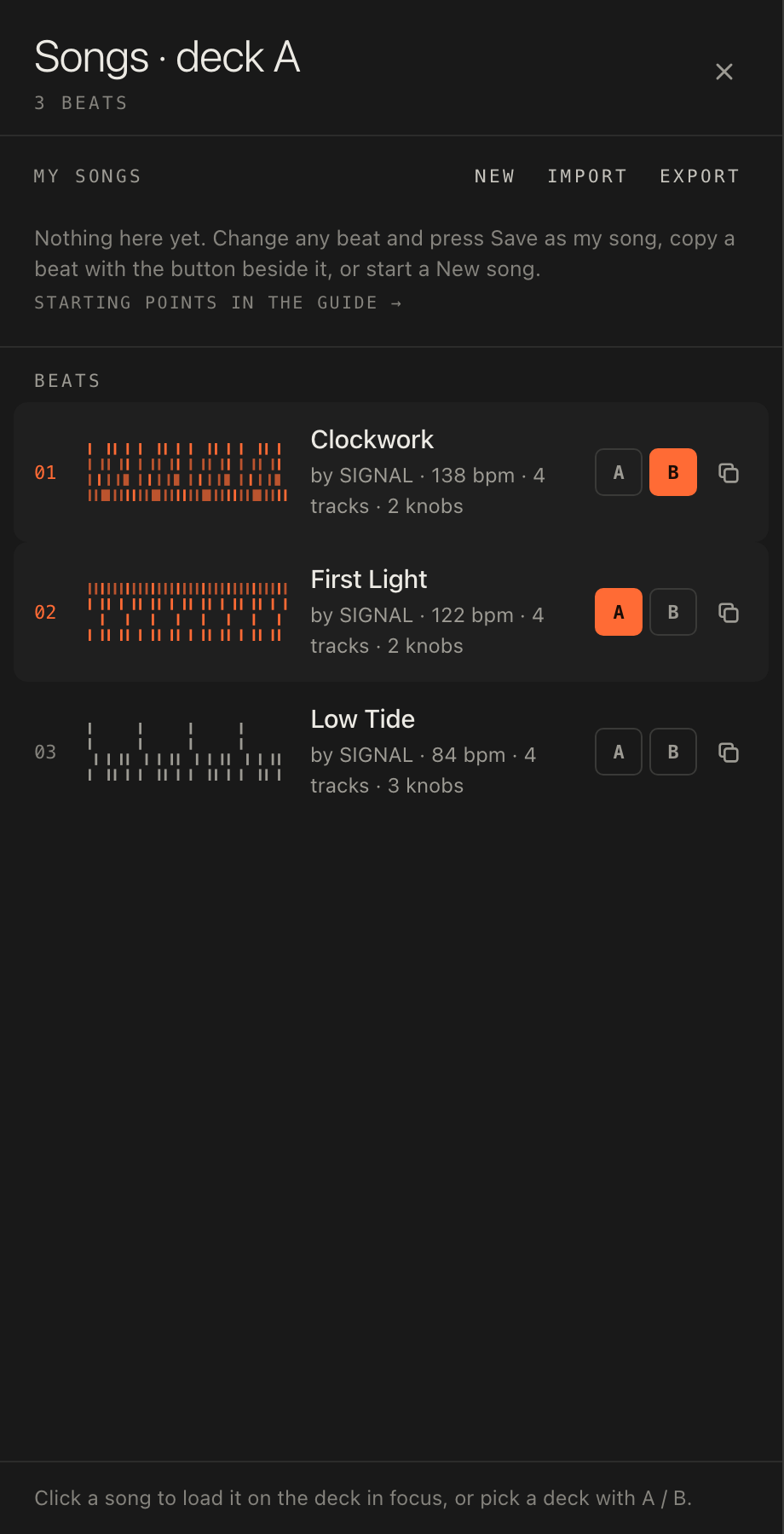
The drawer has three shelves:
- My songs: the songs saved to your account, with New, Import and Export beside the title. A new account starts with one, the User demo, a copy of the featured beat that is yours to change. Signed out, the shelf explains what fills it.
- From the community: the community shelf, songs other people have saved and chosen to let the site feature, up to a few dozen at a time.
- Beats: the site's own songs. Signed out, the featured beats play and the rest are shown but marked sign in to play.
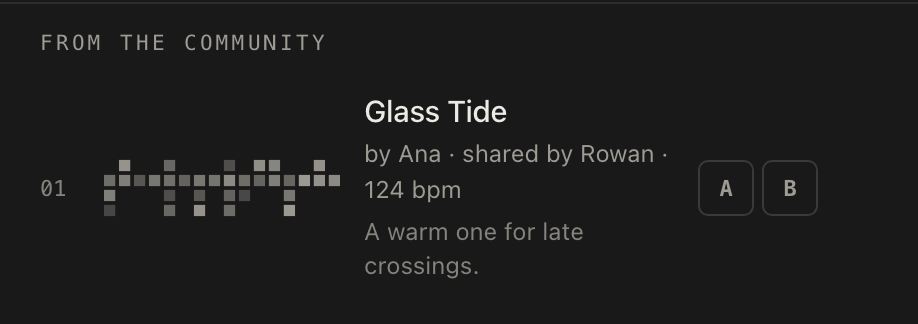
A row tells you what you are about to load before you load it: the tempo in bpm, how many tracks and knobs the song has (or one pattern), from and a title when it is a remix of another song, shared when it has a link, and when it was last saved. Clicking the row loads it on the deck in focus. The small A and B buttons at the end load it on a particular deck. Your own songs have a ⋯ menu (rename, duplicate, share, delete), and a beat has Copy to my songs. There is no search box; the list is meant to be short enough to read.
Every beat has an address of its own, /beats/ and its name, which you can send to anyone. A link
made from the share sheet carries your knob, switch, channel and tempo settings with it, so a friend hears the
beat the way you set it: see Share.
Signed out on the live site, with more than one featured beat available, a row of chips sits beside deck A, one per featured beat. Tap one to switch. They are the quickest way round the small player you get without an account; the rest of what an account adds is in Start here.